
Hardware limit
RAM, VRAM, CPU/GPU mode, host machine, container limit, and what normal desktop memory was already using.
This section keeps the local model test records: machine limits, runtime, settings, screenshots, measured speed, memory pressure, and where a model becomes too slow to use.
Last updated
2026-06-22
Current records
The page separates 8GB RAM CPU-only tests from 8GB VRAM GPU-fit tests. Each article keeps the setup, screenshots, raw notes, speed, and memory behavior close to the conclusion.
The record is useful because it can be checked later: the machine, the settings, the raw proof, the measured result, and the point where the run stopped feeling practical.
RAM, VRAM, CPU/GPU mode, host machine, container limit, and what normal desktop memory was already using.
Ollama or LM Studio version, model tag, quantization, context length, output limit, temperature, and install path.
Screenshots, raw command output, Docker or nvidia-smi proof, model list, and test JSON when available.
Tokens per second, wall time, loaded memory, peak GPU memory delta, and notes from the actual run.
Where the model moved from comfortable to slow, tight, or not worth using as the daily default.
The smaller or larger model a reader should try next on their own prompt before keeping a model.
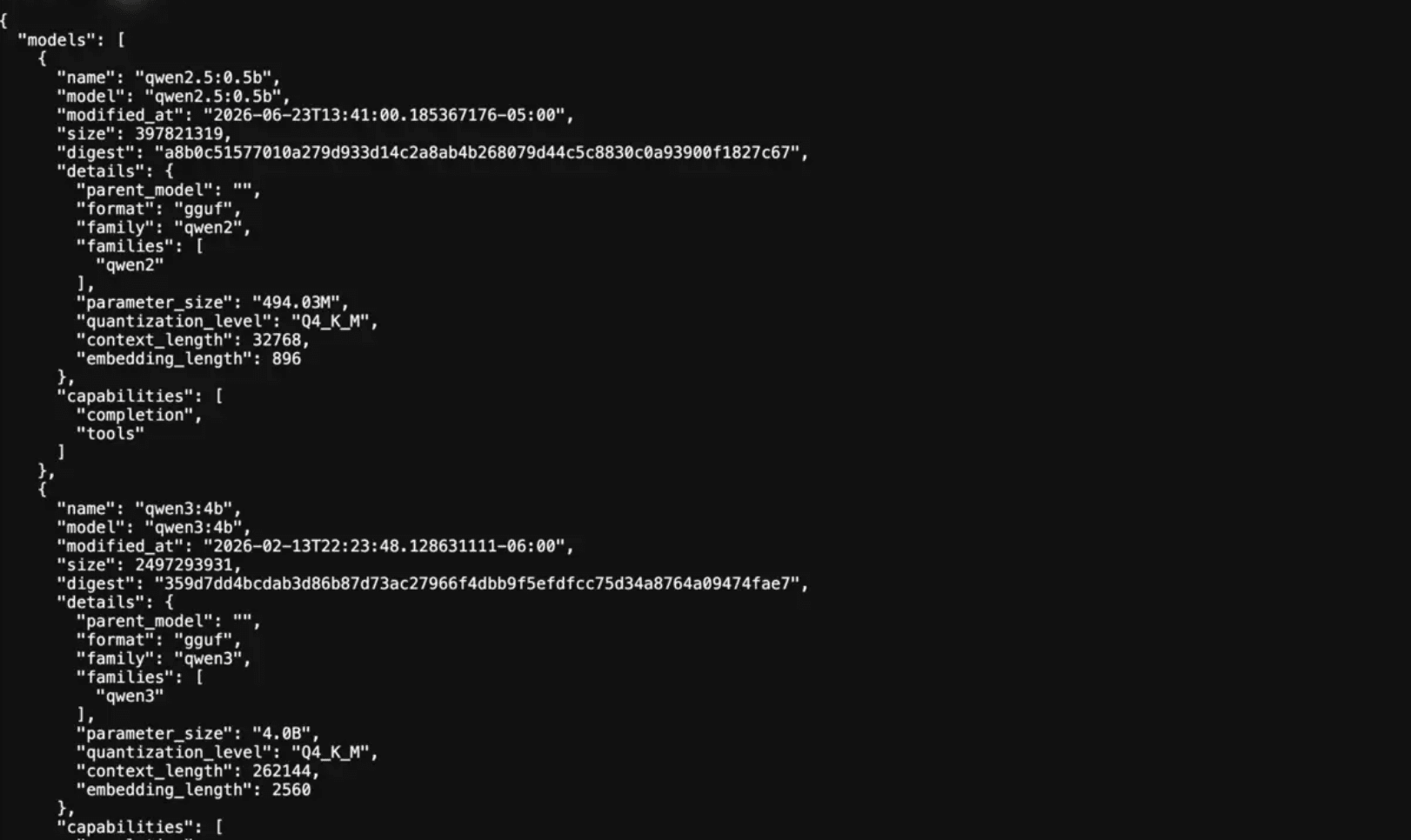
8GiB RAM CPU-only Ollama test record with install order, measured tokens per second, memory use, Docker screenshots, and model notes.
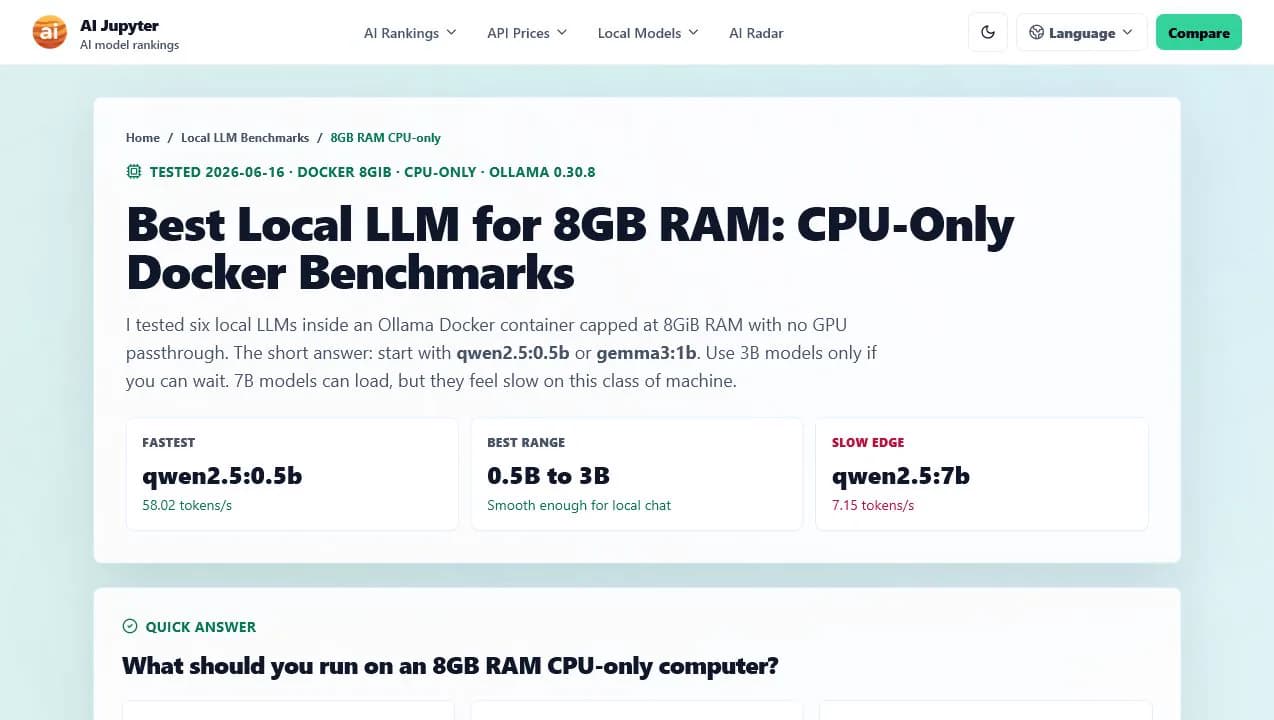
8GiB Docker container, no GPU passthrough, six Ollama models, screenshots, memory notes, and measured tokens per second.
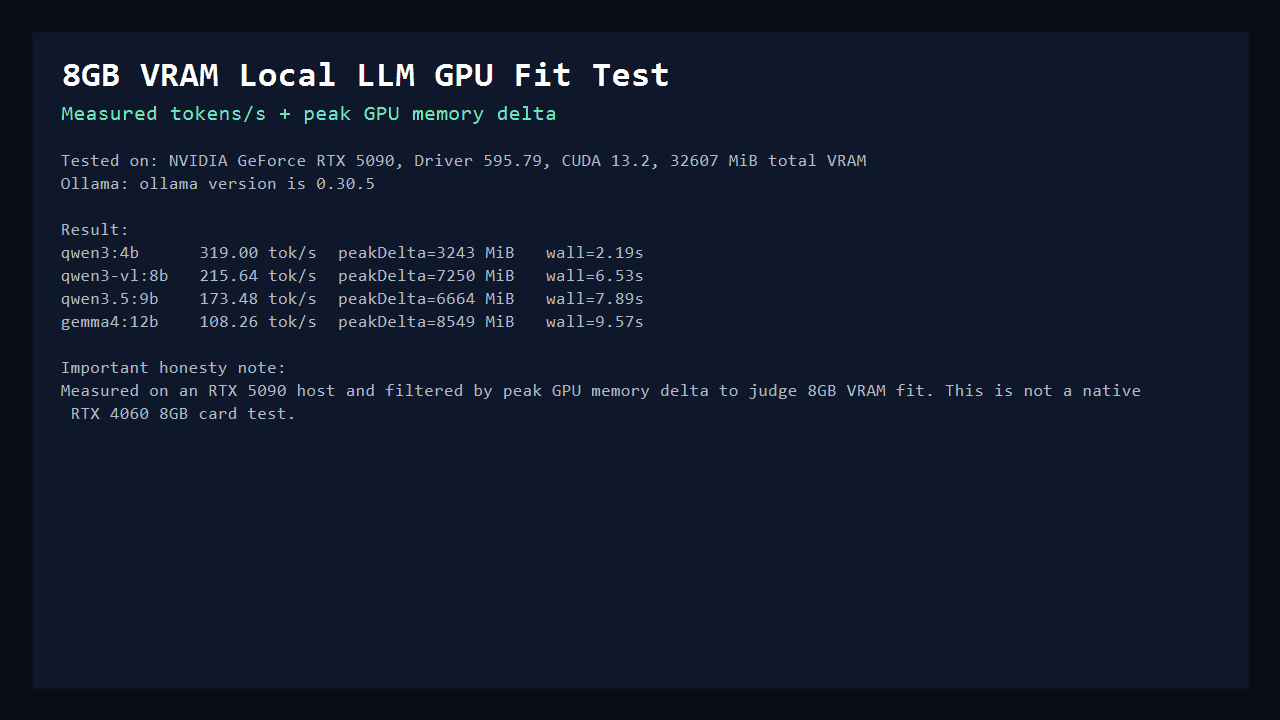
Ollama GPU test record with measured tokens per second, nvidia-smi screenshots, and peak GPU memory change under an 8GB VRAM budget.
Step 1
Start with RAM, VRAM, CPU/GPU mode, runtime, and context settings before comparing model names.
Step 2
A model that loads is not automatically useful. Tokens per second, memory headroom, and later-turn slowdown all matter.
Step 3
The slowest model that still runs is a warning line, not usually the model to recommend as the daily default.
Step 4
Use the article to pick a nearby model, then rerun it on your own chat, coding, writing, or vision task.
Future articles can cover 16GB RAM, 8GB VRAM, 16GB VRAM, MacBook unified memory, and multi-GPU workstations without crowding the model finder page. The finder stays for broad matching; these pages are for readers who want real machine results before they install a model.
Questions
It is a record from one fixed setup: machine or container limits, runtime, model list, settings, screenshots, memory behavior, and measured speed.
No. Tokens per second is useful, but memory headroom, context length, answer quality, repeated turns, and whether normal desktop apps stay usable all matter.
CPU-only tests show the low-memory baseline, while GPU-fit tests show what changes when dedicated VRAM is available. Mixing them would make the result less useful.
Use them as a starting point, not a speed promise. Your CPU, GPU, memory pressure, drivers, runtime, and prompt length can change the final result.
Install the listed small model first, run one real prompt, watch memory pressure, then test a larger model only if the computer remains responsive.