
Best Local LLMs for 8GB RAM CPU-Only in 2026: Ollama Benchmarks
I tested six local LLMs inside an Ollama Docker container capped at 8GiB RAM with no GPU passthrough. The short answer: start with qwen2.5:0.5b or gemma3:1b. Use 3B models only if you can wait. 7B models can load, but they feel slow on this class of machine.
Last updated
2026-06-16
What changed
This article now includes raw Docker/Ollama evidence, measured tokens per second, memory pressure notes, FAQ, and a direct methodology link.
Review methodologyFastest
qwen2.5:0.5b
58.02 tokens/s
Best range
0.5B to 3B
Smooth enough for local chat
Slow edge
qwen2.5:7b
7.15 tokens/s
How to read this test
Use the test order, not just the raw speed number.
The host CPU was fast, so an older 8GB laptop will usually produce lower absolute tokens/s. The useful signal is the order, memory pressure, and where the experience stops feeling comfortable. That is why the practical pick stays small: start below 3B, then treat 7B as a boundary test.
Fit first
If the model leaves almost no memory headroom, normal apps can push the machine into swapping.
Comfort matters
A slower but smarter model is not always better if every short reply takes patience.
Retest locally
Use one prompt from your own workflow before making any model your daily default.
Field notes from the run
The main lesson: the best 8GB model is the one you keep using.
I do not read this benchmark as a contest to find the biggest model that loads. On an 8GB RAM CPU-only machine, the better question is which model gives useful answers without making the computer feel occupied by the model.
The fastest model is a setup check
qwen2.5:0.5b is the model I would use to prove Ollama, memory limits, and CPU-only inference are working before judging local AI quality.
1B felt like the practical daily range
The 1B-class models kept enough speed headroom that short prompts still feel casual instead of turning into a benchmark chore.
3B is where patience starts to matter
qwen2.5:3b was usable, but it is no longer instant. I would test my own prompts before calling it a default on an 8GB laptop.
7B is a boundary, not a recommendation
The useful lesson from qwen2.5:7b is that loading is not the same as comfort. It proves the edge, but it is not where I would start.
What should you run on an 8GB RAM CPU-only computer?
Install first
qwen2.5:0.5b is the safest first model. It used about 1GiB loaded memory and generated 58.02 tokens/s in this test.
Daily lightweight chat
gemma3:1b, llama3.2:1b, and qwen2.5:1.5b stayed above 25 tokens/s and are still comfortable.
Quality tradeoff
qwen2.5:3b is the upper practical range here. It ran at 16.77 tokens/s, which is usable but no longer snappy.
Yes, I set up Docker first
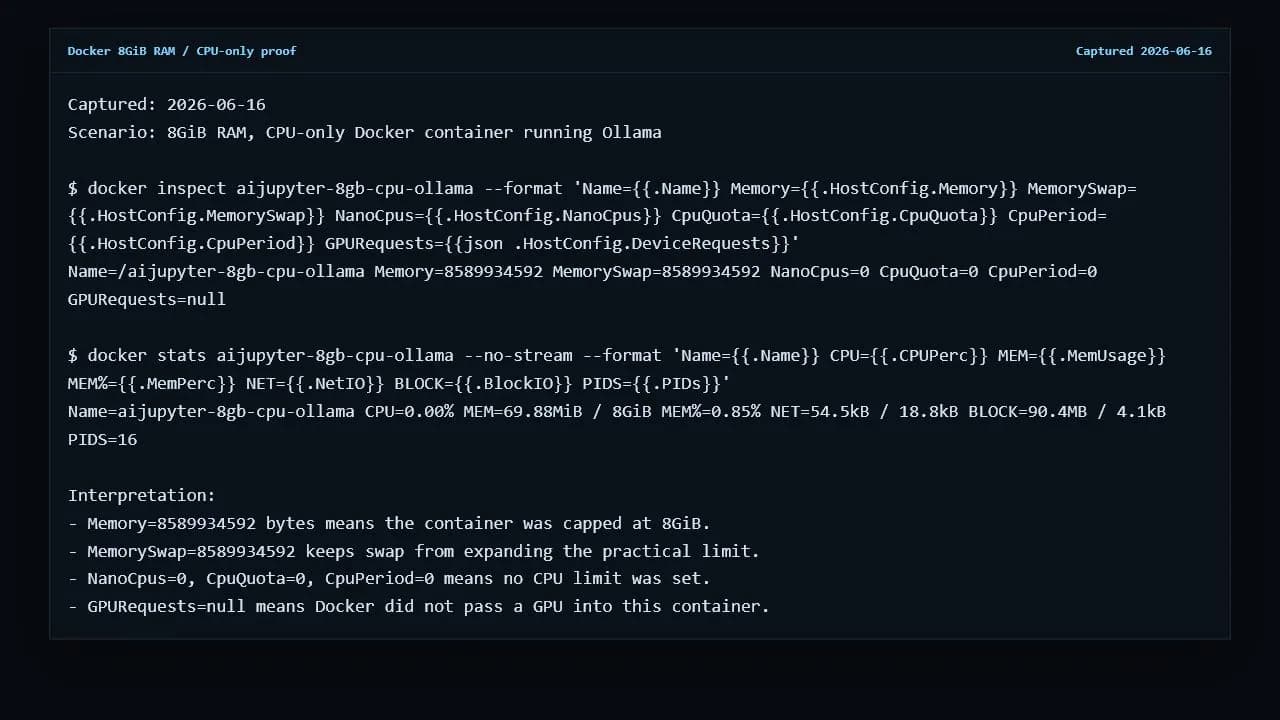
Docker is not required if you only want to run Ollama on your own computer. For this article, Docker matters because it lets the test mimic an 8GB RAM CPU-only box while the host machine has more memory and a GPU. The container was launched with an 8GiB memory limit and no GPU request.
docker run -d --name aijupyter-8gb-cpu-ollama \
  --memory=8g --memory-swap=8g \
  -p 11435:11434 \
  -e OLLAMA_NUM_PARALLEL=1 -e OLLAMA_KEEP_ALIVE=0 \
  ollama/ollama:latest
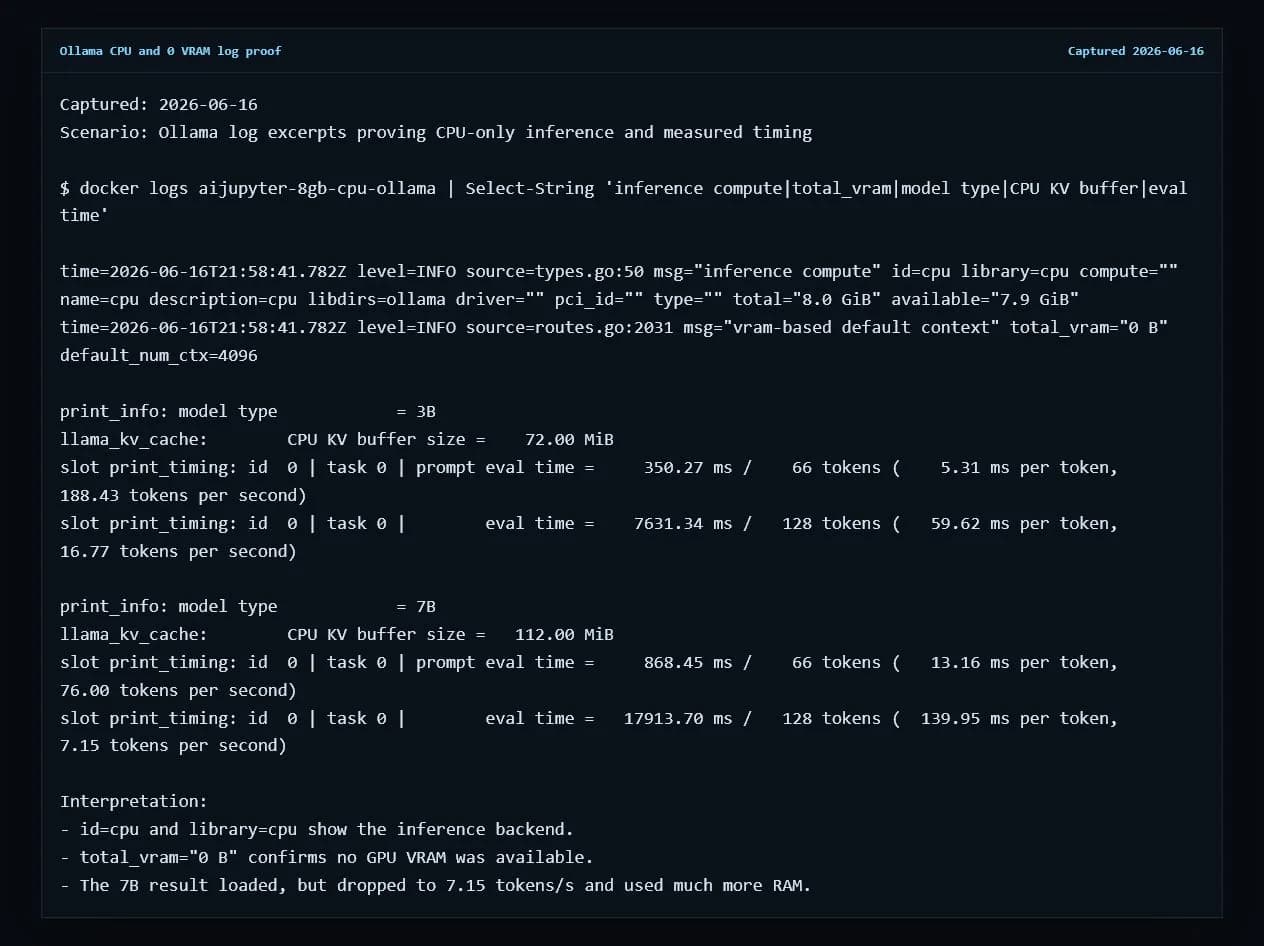
The important proof line is GPURequests=null. Ollama also logged id=cpu library=cpu and total_vram="0 B", so the benchmark did not use the host RTX GPU.
Tokens per second: 0.5B and 1B models are the real 8GB sweet spot
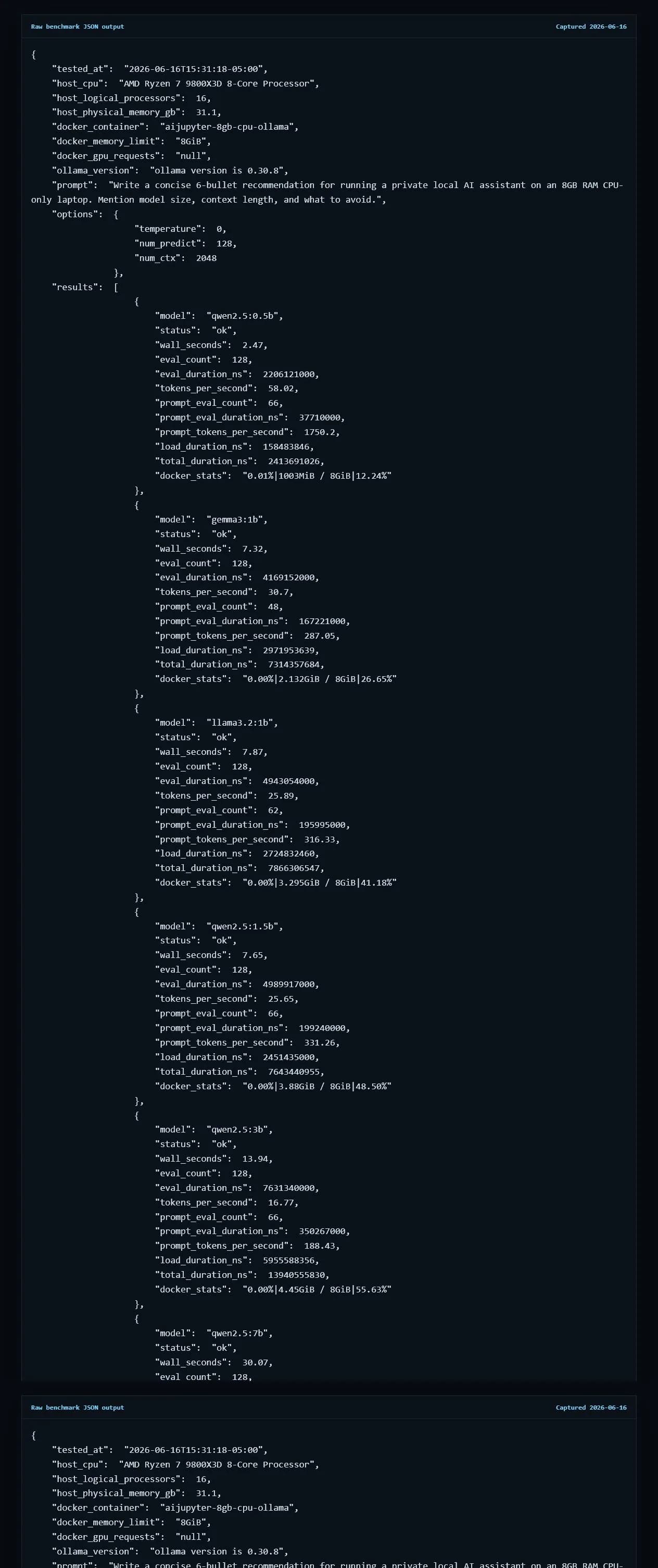
I used the same prompt, num_ctx=2048, num_predict=128, and temperature=0 for every model. Tokens per second were calculated from Ollama's returned eval_count / eval_duration.
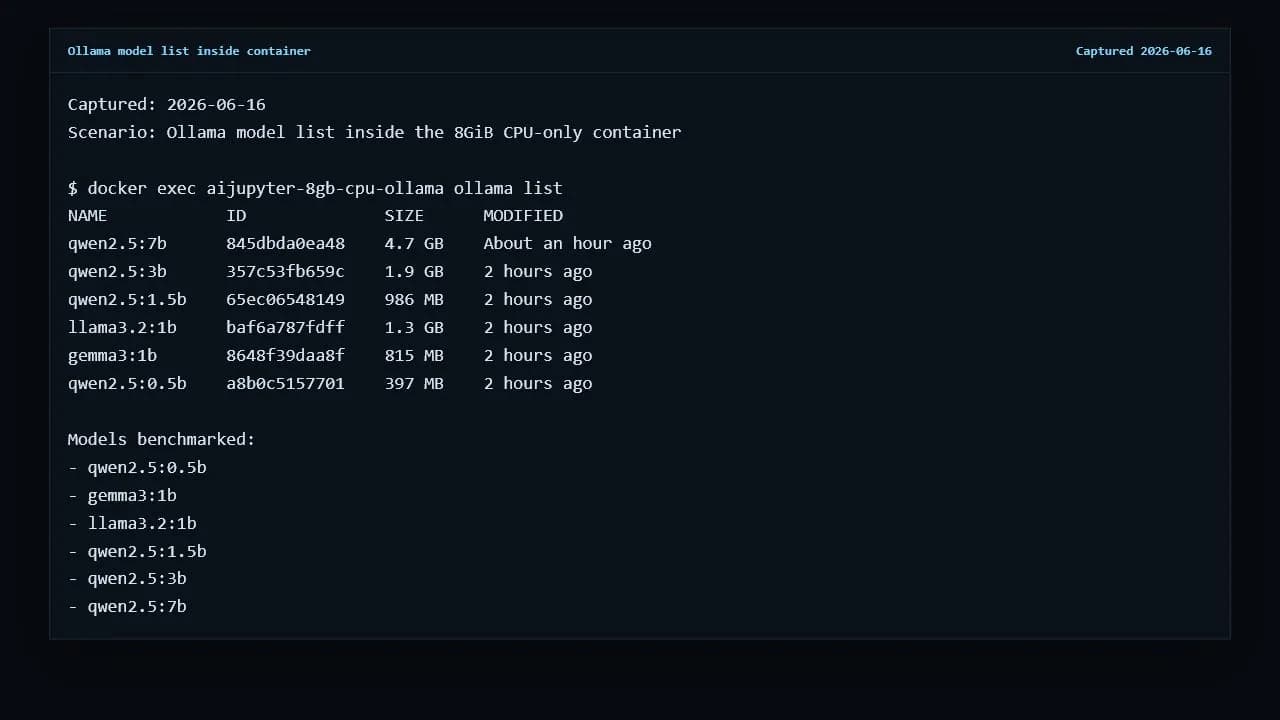
| Model | Size | Tokens/s | Loaded memory | Verdict |
|---|---|---|---|---|
| qwen2.5:0.5b | 397 MB | 58.02 | 1003MiB / 8GiB | Best first install |
| gemma3:1b | 815 MB | 30.70 | 2.132GiB / 8GiB | Recommended |
| llama3.2:1b | 1.3 GB | 25.89 | 3.295GiB / 8GiB | Usable |
| qwen2.5:1.5b | 986 MB | 25.65 | 3.88GiB / 8GiB | Usable |
| qwen2.5:3b | 1.9 GB | 16.77 | 4.45GiB / 8GiB | Usable, not snappy |
| qwen2.5:7b | 4.7 GB | 7.15 | 6.409GiB / 8GiB | Slow boundary |
Raw benchmark JSON is available at benchmark-results.json. The host CPU was an AMD Ryzen 7 9800X3D, so older 8GB laptops should expect lower absolute numbers, but the model order is still useful.
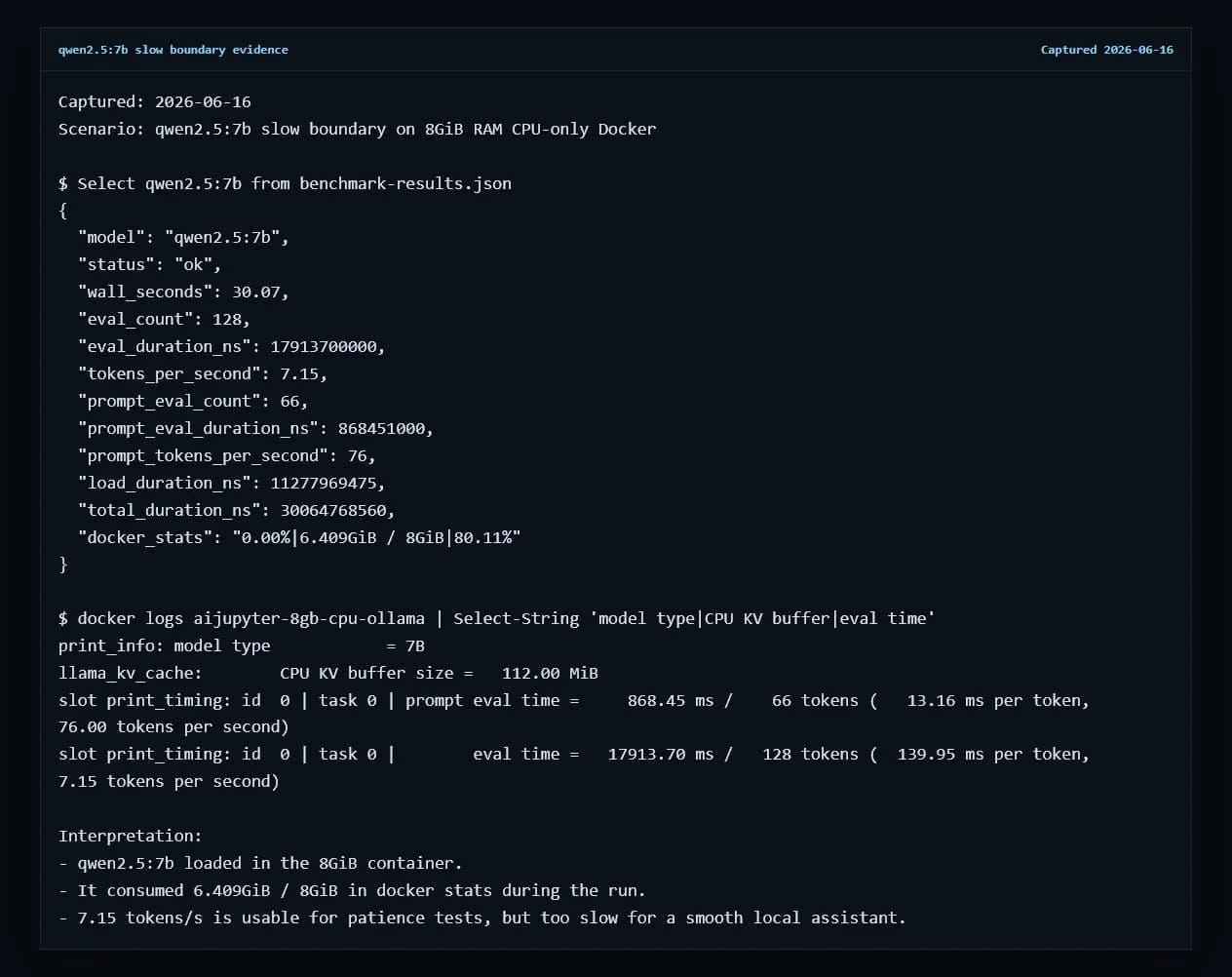
7B works, but it is the wrong default for 8GB RAM CPU-only
The 7B result is the useful warning. It did not crash. It did not require a GPU. But it took 30.07 seconds to generate 128 tokens and used 6.409GiB inside the 8GiB container. On a real 8GB laptop with a browser, editor, and OS services open, that margin can disappear quickly.
Keep context short
Use 2048 tokens or less when memory is tight. Bigger context windows increase KV cache memory and make a barely usable model feel worse.
Avoid 13B+ on this tier
If 7B is already at 7.15 tokens/s on this CPU, larger dense models are not a good daily-driver target for an 8GB RAM CPU-only machine.
Install commands
The install order I would use
First
ollama run qwen2.5:0.5bFastest, lowest memory, best sanity check.
Second
ollama run gemma3:1bStill fast enough for a small private assistant.
Stretch
ollama run qwen2.5:3bBetter capability tradeoff, but expect slower replies.
FAQ
Practical 8GB local LLM questions
What is the best local LLM for 8GB RAM with no GPU?
In this Docker test, qwen2.5:0.5b was the safest first install at 58.02 tokens/s, while gemma3:1b was still comfortable at 30.70 tokens/s. If you want a stronger model and can tolerate waiting, qwen2.5:3b was usable at 16.77 tokens/s.
Can an 8GB RAM CPU-only computer run a 7B local LLM?
Yes, qwen2.5:7b loaded in the 8GiB container, but it only generated 7.15 tokens/s and used 6.409GiB of the 8GiB memory limit. That is usable for experiments, but too slow for a smooth daily assistant.
Do I need Docker to test local models on an 8GB machine?
Docker is not required for normal Ollama use, but it is useful for this benchmark because it enforces the 8GiB RAM ceiling and proves the test was CPU-only. For daily use, installing Ollama directly is simpler.
Will these tokens per second match an old 8GB laptop?
No. The container was limited to 8GiB RAM, but the host CPU was an AMD Ryzen 7 9800X3D. Older laptop CPUs will usually be slower, so treat the order as a fit and relative-speed guide rather than a universal speed promise.
What local LLM size should I install first on 8GB RAM?
Install a 0.5B or 1B model first, then move to 3B only if the laptop stays responsive. Starting small proves the runtime works before you spend time downloading a model that may feel too slow.
Is 8GB RAM enough for coding with a local LLM?
It is enough for tiny private helpers, short explanations, and simple snippets. Repository-wide coding, long files, test loops, and agent workflows usually need a larger machine or a hosted coding model.
More local LLM hardware guides
Best Local LLMs for 8GB RAM in 2026: Ollama, LM Studio, and Model Picks
Practical local LLM picks for 8GB laptops and CPU-only machines.
Best Local LLMs for 16GB RAM in 2026: Ollama and LM Studio Picks
Balanced local LLMs for 16 GB laptops and MacBooks.
Best Local LLMs for 32GB RAM in 2026: 7B, 8B, and 14B Picks
Stronger local LLMs for 32 GB RAM systems.
Best Local LLMs for RTX 5090 in 2026: 32 GB VRAM Picks
Top-end single-GPU local LLM picks for 32 GB VRAM RTX 5090 builds.
Best Local LLMs for RTX 5080 in 2026: 16 GB VRAM Picks
Practical local LLM picks for 16 GB VRAM RTX 5080 systems.
Best Local LLMs for RTX 5070 Ti in 2026: 16 GB VRAM Picks
Balanced 16 GB VRAM local LLM picks for RTX 5070 Ti machines.
Best Local LLMs for RTX 5070 in 2026: 12 GB VRAM Picks
12 GB VRAM local LLM picks for RTX 5070 desktop builds.
Best Local LLMs for RTX 5060 Ti 16GB in 2026: 16 GB VRAM Picks
16 GB VRAM local LLM picks for RTX 5060 Ti 16GB systems.
Best Local LLMs for RTX 5060 Ti 8GB in 2026: 8 GB VRAM Picks
8 GB VRAM local LLM picks for RTX 5060 Ti 8GB systems.
Best Local LLMs for RTX 5060 in 2026: 8 GB VRAM Picks
8 GB VRAM local LLM picks for RTX 5060 systems.
Best Local LLMs for RTX 4090 in 2026: 24GB VRAM Picks
High-performance local LLMs for 24 GB VRAM RTX 4090 builds.
Best Local LLMs for RTX 4080 in 2026: 16 GB VRAM Picks
16 GB VRAM local LLM picks for RTX 4080 and RTX 4080 Super systems.
Best Local LLMs for RTX 4070 Ti Super in 2026: 16 GB VRAM Picks
16 GB VRAM local LLM picks for RTX 4070 Ti Super desktops.
Best Local LLMs for RTX 4070 Ti in 2026: 12 GB VRAM Picks
12 GB VRAM local LLM picks for RTX 4070 Ti builds.
Best Local LLMs for RTX 4070 in 2026: 12 GB VRAM Picks
12 GB VRAM local LLM picks for RTX 4070 and RTX 4070 Super systems.
Best Local LLMs for RTX 4060 Ti 16GB in 2026: 16 GB VRAM Picks
16 GB VRAM local LLM picks for RTX 4060 Ti 16GB systems.
Best Local LLMs for RTX 4060 Ti 8GB in 2026: 8 GB VRAM Picks
8 GB VRAM local LLM picks for RTX 4060 Ti 8GB systems.
Best Local LLMs for RTX 4060 in 2026: 8 GB VRAM Picks
8 GB VRAM local LLM picks for RTX 4060 systems.
Best Local LLMs for RTX 3090 in 2026: 24 GB VRAM Picks
24 GB VRAM local LLM picks for RTX 3090 workstations.
Best Local LLMs for RTX 3080 in 2026: 10 GB VRAM Picks
10 GB VRAM local LLM picks for RTX 3080 systems.
Best Local LLMs for RTX 3070 in 2026: 8 GB VRAM Picks
8 GB VRAM local LLM picks for RTX 3070 systems.
Best Local LLMs for RTX 3060 Ti in 2026: 8 GB VRAM Picks
8 GB VRAM local LLM picks for RTX 3060 Ti systems.
Best Local LLMs for RTX 3060 in 2026: 12 GB VRAM Picks
12 GB VRAM local LLM picks for RTX 3060 systems.
Best Local LLMs for MacBook in 2026: Apple Silicon Picks
MacBook-friendly local LLMs for Apple Silicon unified memory.