
AI Coding Tools
Codex Image Input Guide
A practical Codex image input guide for using screenshots, design specs, browser comments, and visual QA to fix UI bugs.
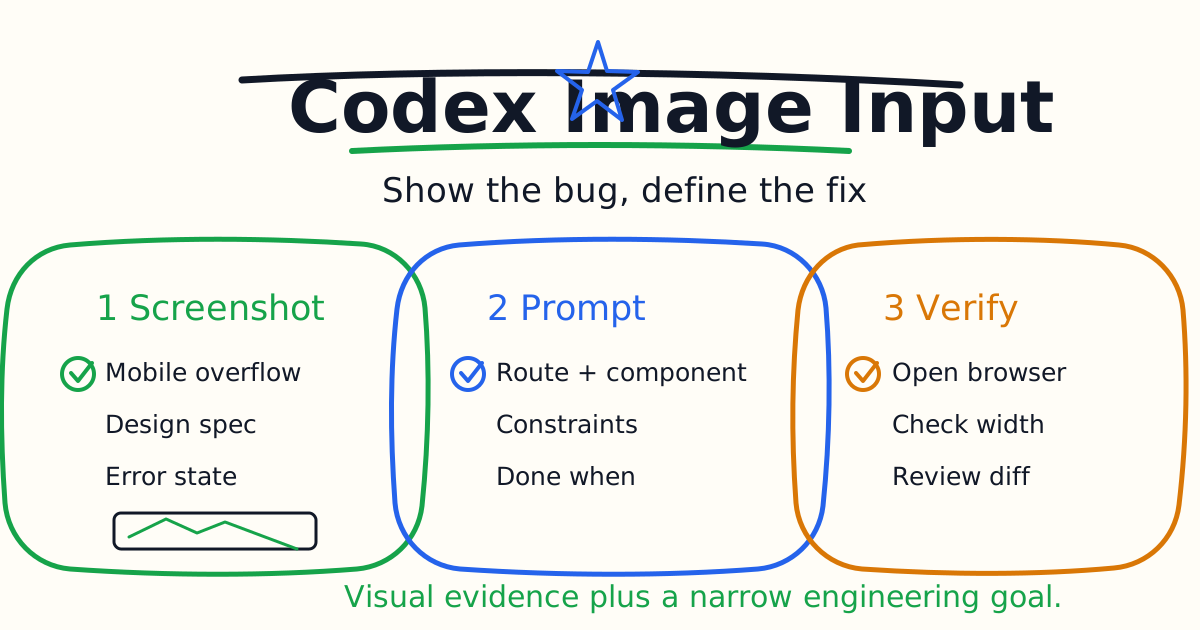
Some bugs are easier to show than explain. A mobile layout overflows, a chart tooltip covers the data point, a button wraps badly, a modal is misaligned, or a design spec has spacing the implementation does not match. Codex image inputs let you attach screenshots or design specs so the agent can reason from the visual state and the code together.
This guide shows how to use screenshots, design images, browser comments, and visual QA prompts with Codex without turning a UI bug into a broad redesign.
Quick Answer
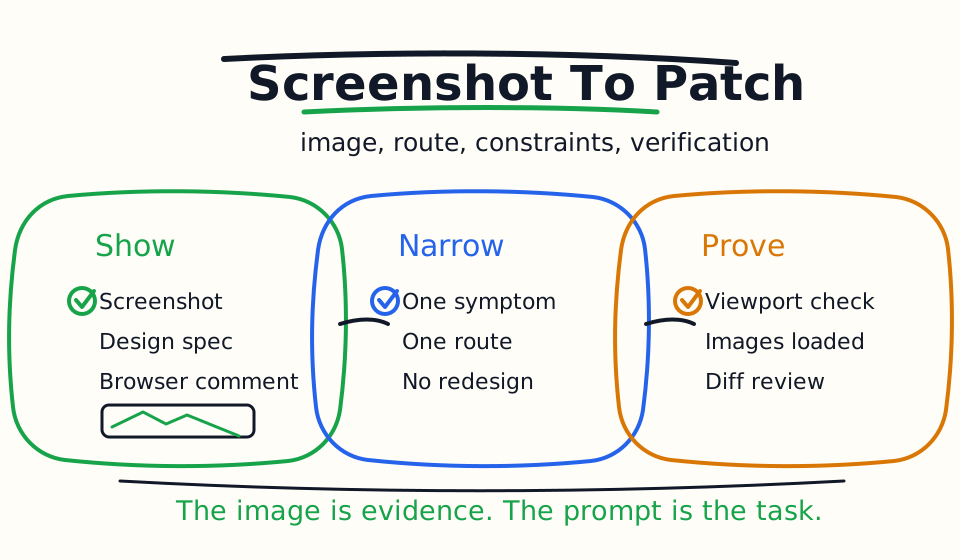
Use image input when a coding task depends on visual evidence. Attach a screenshot, name the route or component, describe the expected behavior, set constraints, and ask Codex to verify the result in the browser or with the closest UI check.
Good prompt:
The attached screenshot shows horizontal overflow at 390px width on /pricing.

Goal: Fix the overflow without changing the card order.

Context: Start with the pricing page and card components.

Done when: The page has no document-level horizontal scroll at 390px and desktop layout is unchanged.
The screenshot shows the symptom. The prompt defines the engineering task.
How To Attach Images In Codex
In the Codex CLI, you can attach screenshots or design specs with image flags:
codex -i screenshot.png "Explain this error"
For multiple files:
codex --image before.png,after.png "Compare these UI states and identify the likely component causing the difference."
You can also paste images into an interactive Codex session. Use common formats such as PNG or JPEG, and combine the image with text instructions. The image alone is not a task. It is evidence for the task.
When Image Input Helps
Use image input for visual problems that are hard to describe precisely in text:
- Mobile overflow.
- Misaligned buttons.
- Text clipping.
- Unexpected wrapping.
- Modal positioning.
- Broken empty states.
- Chart tooltip placement.
- Design spec comparison.
- Screenshot-based error messages.
- Visual regression triage.
Do not use image input when a plain error log or failing test is more direct. If the bug is a TypeScript error, paste the error. If the bug is visual, attach the screenshot.
The Four-Part Visual Prompt
Use this structure:
Image: The attached screenshot shows the current visual bug.

Route/component: /settings/billing, BillingPlanCard.

Expected behavior: The plan name and price should fit without overlapping the action button at 390px width.

Constraints: Do not change pricing copy, card order, or desktop layout.

Done when: Verify the mobile width no longer overflows and summarize the changed files.
This gives Codex enough context to avoid guessing. It knows what the screenshot means, where to start, what not to change, and how to prove the fix.
Use Browser Comments For Precise Feedback
The Codex in-app browser can be useful when you are building or debugging web pages. It gives you and Codex a shared rendered view. You can leave comments on elements or areas that need changes, then ask Codex to address those comments.
Use browser comments when the problem is spatial:
I left comments on the mobile pricing page. Address only the commented overflow and spacing issues. Keep the existing card structure unchanged.
Line-specific code comments are good for code review. Browser comments are good for visual review.
Keep Visual Tasks Narrow
The biggest mistake with screenshot prompts is letting one visual bug become a redesign. Codex may see many things in an image. Your prompt should name the one issue that matters.
Weak prompt:
Make this page look better.
Strong prompt:
Fix the header button overlap shown in the screenshot at 390px width. Do not change colors, copy, navigation structure, or desktop spacing. Verify there is no document-level horizontal scroll.
The strong prompt has a measurable finish line.
Visual QA Checklist
For UI work, ask Codex to check:
- The exact route.
- The target viewport width.
- The visual state: loading, empty, error, success, open modal, or hovered tooltip.
- Whether images loaded.
- Whether text overlaps or clips.
- Whether the document has horizontal scroll.
- Whether desktop layout still works.
- Which files changed.
This is much stronger than asking for "responsive design" in general.
Example: Fix Mobile Overflow
Prompt:
The screenshot shows the product cards overflowing horizontally at 390px width.

Goal: Remove document-level horizontal scroll.

Context: Start with ProductGrid and ProductCard.

Constraints: Keep three columns on desktop. Do not shorten product names. Do not hide content.

Done when: At 390px width, document.documentElement.scrollWidth is not greater than clientWidth, and desktop grid still renders.
This tells Codex the exact browser-level signal that proves the fix.
Example: Match A Design Spec
Prompt:
The first image is the design spec. The second image is the current implementation.

Goal: Match the spacing and button alignment in the hero section.

Constraints: Do not change the headline text, CTA labels, or image asset. Keep the section responsive.

Done when: Explain the CSS changes and verify the section at mobile and desktop widths.
Use this when the task is not just "find a bug" but "align implementation with a visual target."
Image Input Plus Code Review
Screenshots should not bypass code review. After Codex makes a visual fix, inspect the diff:
- Did it change the right component?
- Did it add broad global CSS?
- Did it hide content instead of fixing layout?
- Did it break desktop?
- Did it change copy or semantics unnecessarily?
- Did it verify the target viewport?
Visual bugs often tempt agents into global CSS patches. Ask for the smallest component-level fix when possible.
Common Mistakes
The first mistake is attaching a screenshot without explaining what matters. Codex may focus on the wrong detail.
The second mistake is asking for a redesign when you need a bug fix. Be explicit about what should not change.
The third mistake is failing to name the route or component. A screenshot plus a path saves time.
The fourth mistake is checking only the screenshot viewport. Ask Codex to verify the nearby desktop or tablet layout too.
The fifth mistake is letting the agent hide overflow without fixing the cause. overflow-x: hidden can mask a layout bug instead of repairing it.
Bottom Line
Codex image input is a practical tool for UI bugs, design implementation, visual QA, and screenshot-based debugging. The best workflow pairs the image with a precise engineering prompt: route, symptom, expected behavior, constraints, and verification.
Show Codex the bug, then tell it exactly what a correct fix means.
Related Codex Tutorials
- Codex Quick Start
- Codex CLI Tutorial
- Codex Prompts for Developers
- Codex MCP Guide
- Codex Exec Automation Guide
- Codex Code Review Tutorial
- Codex Permissions and Sandbox Guide
Official References
Decision Checklist For Codex Image Input Guide
Use this guide as a decision filter before a sales call, trial, or migration plan. For Codex Image Input Guide, the practical question is whether the topic connects Codex image input, Codex screenshots, UI bug fixing to a measurable workflow outcome. A good decision should improve delivery speed, quality, cost control, or operational confidence without creating hidden review, security, or migration work.
- Generated changes survive code review with fewer rewrites, fewer broad diffs, and fewer style corrections.
- The assistant understands multi-file context, tests, build failures, private repository rules, and local conventions.
- Administrators can manage seats, data controls, policy settings, and usage visibility without blocking developers.
Pilot Plan
A useful pilot is small enough to finish quickly but realistic enough to expose integration, data, workflow, and pricing issues. Avoid demo-only tests. The trial should use real tasks, real constraints, and a baseline from the current process so the team can decide with evidence instead of impressions.
- Give each candidate the same bug fix, failing-test repair, refactor, and explanation task.
- Track accepted diffs, reviewer comments, rework time, test pass rate, and developer satisfaction.
- Run the trial with senior maintainers and newer engineers because the value pattern is different for each group.
Metrics To Track
Track metrics that connect Codex Image Input Guide to outcomes a budget owner and an engineering owner can both understand. A tool can look impressive in a demo and still fail if usage is low, quality is uneven, or the cost model changes under real workload volume.
- Accepted AI-assisted diffs, rejected suggestions, reviewer comments, and post-merge fixes.
- Time to repair failing tests, explain unfamiliar modules, and complete safe refactors.
- Seat utilization, premium request exhaustion, and policy exceptions for sensitive repositories.
Budget And Risk Review
Commercially useful AI tooling decisions should include the subscription or API price, but they should also include support load, review time, observability, privacy controls, switching cost, and the cost of wrong or low-quality output. Treat the first estimate as a working model and update it with production evidence.
- Confirm private code handling, training opt-out, data retention, and enterprise policy controls.
- Watch for over-generation: large patches that look productive but increase review cost.
- Compare cost per accepted change rather than cost per seat alone.
Revisit the assistant after 30 days of real pull requests. A useful coding tool should reduce review latency and onboarding friction without increasing risky generated code.
Editorial note
AI Jupyter writes independent guides for technical readers. Product details, pricing, and feature names can change, so readers should verify commercial terms on the official vendor site before buying.
Reviewed by the AI Jupyter Editorial Team.