
AI Coding Tools
Codex CLI Tutorial
A practical Codex CLI tutorial for installing Codex, signing in, running your first repository task, and verifying the final diff.
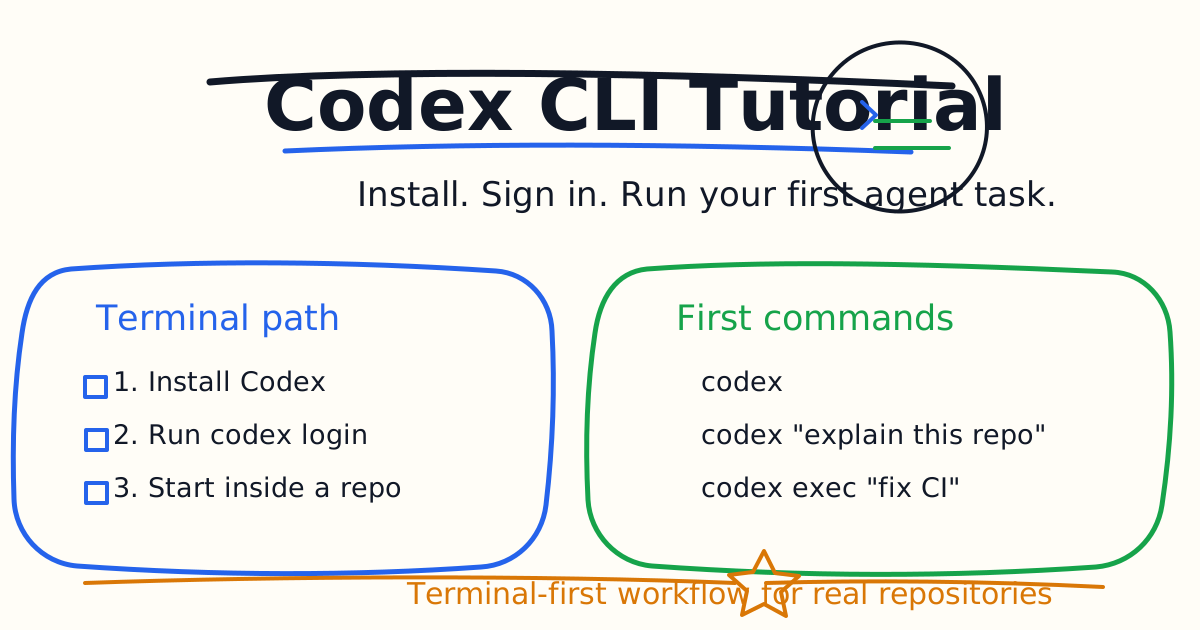
The Codex CLI is the fastest way to use OpenAI Codex from a terminal-first developer workflow. You start it inside a repository, give it a task in natural language, watch it inspect files and propose changes, then ask it to run the checks that prove the work is safe.
This tutorial gives you a practical first path: install Codex, sign in, run a small repository task, verify the result, and decide when to use interactive mode, one-shot commands, or non-interactive automation.
Quick Answer
Install Codex from the official OpenAI quickstart, open a terminal in your project, and run codex. If you need to sign in, run codex login. For your first useful task, do not ask Codex to rebuild the whole project. Ask it to explain the repository, fix one failing test, or make one narrow change and run the relevant verification command.
A strong first command looks like this:
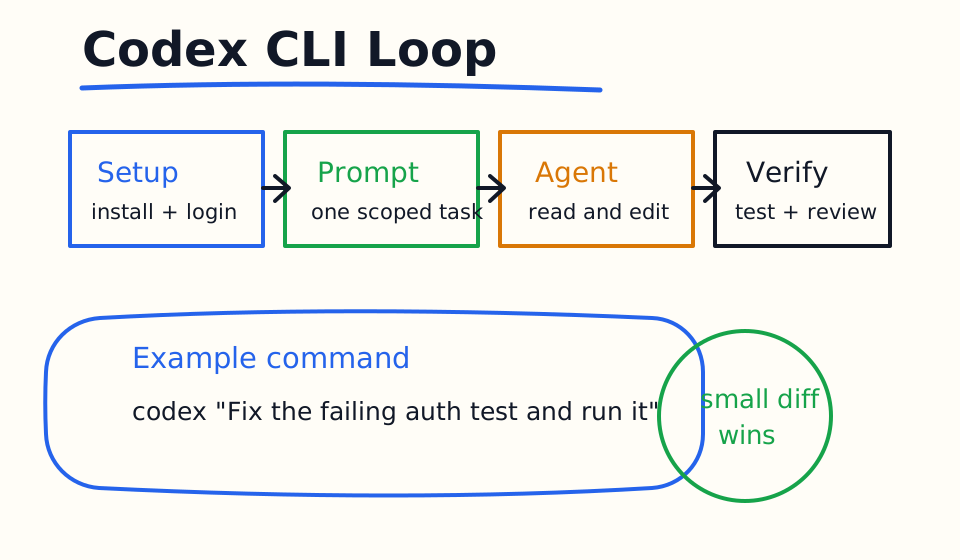
codex "Find the auth tests, explain the failing case, fix the smallest necessary bug, and run the related test."
That gives Codex a clear target, a reviewable scope, and a verification requirement.
What The Codex CLI Is For
The CLI is best when you want Codex close to the actual repository, command line, test runner, package manager, and git workflow. It launches a terminal UI where Codex can read your project, edit files, run commands, and show a transcript of what happened.
Use the CLI when the task belongs in a local repo: debugging, refactoring, tests, documentation updates, API endpoint changes, build failures, type errors, and small feature work. Use the Codex app or IDE extension when the work needs richer desktop review, editor-attached context, browser testing, or a more visual workflow.
The CLI is not just a chatbot in a terminal. It is an agent loop. Codex receives your prompt, gathers context, decides what action to take, reads or edits files, runs commands when allowed, and continues until the task is done or you stop it.
Install Codex
Use the official OpenAI Codex quickstart as the source of truth for installation commands because the installer can change over time. The documented standalone installer path includes shell installers for macOS, Linux, and Windows, and the official docs also describe environment variables for unattended installs.
After installation, confirm the command is available:
codex --help
If the command is not found, restart your terminal and check whether the installer added Codex to your PATH. On Windows, also check whether you installed from PowerShell, WSL, or the Codex desktop app flow, because each environment can have a different PATH.
Sign In
Codex supports two OpenAI sign-in paths for local workflows: ChatGPT sign-in and API key sign-in. For normal interactive developer use, ChatGPT sign-in is the default when no valid local session exists. For automation, scripts, and CI-style workflows, API key authentication can be a better fit because usage follows OpenAI Platform billing and organization settings.
Run:
codex login
The login flow can open a browser window. After sign-in, Codex caches local credentials for future CLI or IDE extension sessions. Treat any credential cache as sensitive. Do not commit it, paste it into tickets, or share it in chat.
Start Interactive Mode
Open a terminal inside a repository and run:
codex
Interactive mode is useful when you want to iterate. You can ask for a plan, inspect the proposed direction, let Codex edit files, run checks, and then steer it with follow-up instructions. This is the mode most developers should use while learning.
Try this first:
Explain this repository. Identify the main app entry points, test commands, build command, and the safest first improvement.
That prompt teaches you the project and gives Codex a chance to gather context before editing anything.
Run A One-Shot Prompt
When the task is simple, you can pass the prompt directly:
codex "Explain this codebase to me"
This is useful for quick analysis, small documentation tasks, and focused questions. It is less ideal for risky multi-file edits because you may want the extra control of interactive mode.
For one-shot work, include the done condition in the command:
codex "Update the README install section to match package.json scripts. Do not change code. Show the final diff summary."
Use codex exec For Automation
The exec subcommand runs Codex non-interactively and prints results to stdout. It is useful for repeatable workflows, local scripts, changelog assistance, issue triage, or CI-adjacent checks.
Example:
codex exec "Review the latest diff for missing tests and risky behavior."
Use automation carefully. Do not expose Codex execution to untrusted public input. For repository-changing automation, start with read-only review tasks before allowing edits. Keep credentials private and prefer the official Codex GitHub Action for GitHub Actions workflows when that is the right environment.
Resume A Previous Session
Codex can resume previous CLI sessions. This is useful when a task takes several turns and you do not want to restate the same context.
Use:
codex resume
Or jump to the most recent session:
codex resume --last
Resuming helps when you paused after a failing test, code review comment, or partially completed implementation. Still check the current git diff before continuing so you know what changed.
Use Images And Screenshots
Codex can accept image inputs in CLI workflows. This is useful for UI bugs, design references, screenshots of errors, diagrams, or visual QA.
Example:
codex -i screenshot.png "Explain the UI bug and find the component likely responsible."
Images work best when paired with a clear task. A screenshot plus "fix this" is weaker than a screenshot plus: "The submit button overlaps the input on mobile. Find the component, fix the layout, and verify at 390px width."
A Safe First Repository Task
Use this exact first-task pattern:
Goal: Fix one failing test or explain why it fails.

Context: Start from the test output below and inspect only related files first.

Constraints: Keep the existing architecture. Do not rewrite the module.

Done when: The relevant test passes, and you summarize the diff and any remaining risk.
This pattern works because it gives Codex a small surface area. The task is measurable, the context is focused, and the result is reviewable.
Common CLI Mistakes
The first mistake is launching Codex from the wrong directory. Start from the repository root or the package folder that owns the task. If Codex reads the wrong project, it will spend time discovering irrelevant context.
The second mistake is using full access permissions too early. Start with safer defaults, then loosen permissions only for trusted repositories and workflows that need it. A coding agent is powerful precisely because it can run commands and edit files, so permission choices matter.
The third mistake is skipping verification. Ask Codex to run the exact test, build, lint, or type check command that proves the work. If you do not know the command, ask Codex to inspect package files or project docs and identify it first.
Best First Week Workflow
For the first week, use Codex for five types of tasks: repository explanation, failing tests, small bug fixes, documentation updates, and review of your own diff. Avoid large rewrites until you trust the workflow.
Keep a note of prompts that worked. Once a pattern repeats, move durable instructions into AGENTS.md, such as test commands, generated-file rules, dependency rules, review expectations, and the definition of done.
Bottom Line
The Codex CLI is strongest when you use it as a disciplined terminal teammate. Start inside the right repository, ask for one focused task, require verification, review the diff, and only then widen the scope.
Related Codex Tutorials
- Codex Quick Start
- Codex IDE Extension Tutorial
- Codex Prompts for Developers
- Codex AGENTS.md Guide
- Codex MCP Guide
- Codex Cloud Tasks Guide
- Codex Cloud Environment Setup Guide
- Codex Exec Automation Guide
- Codex GitHub Action Tutorial
- Codex Permissions and Sandbox Guide
- Codex Image Input Guide
- Codex Code Review Tutorial
- Codex vs Claude Code
- Claude Code Quick Start
- Claude Code CLI Tutorial
- Claude Code Settings and Memory Guide
Official References
Decision Checklist For Codex CLI Tutorial
Use this guide as a decision filter before a sales call, trial, or migration plan. For Codex CLI Tutorial, the practical question is whether the topic connects Codex CLI, Codex tutorial, AI coding agent to a measurable workflow outcome. A good decision should improve delivery speed, quality, cost control, or operational confidence without creating hidden review, security, or migration work.
- Generated changes survive code review with fewer rewrites, fewer broad diffs, and fewer style corrections.
- The assistant understands multi-file context, tests, build failures, private repository rules, and local conventions.
- Administrators can manage seats, data controls, policy settings, and usage visibility without blocking developers.
Pilot Plan
A useful pilot is small enough to finish quickly but realistic enough to expose integration, data, workflow, and pricing issues. Avoid demo-only tests. The trial should use real tasks, real constraints, and a baseline from the current process so the team can decide with evidence instead of impressions.
- Give each candidate the same bug fix, failing-test repair, refactor, and explanation task.
- Track accepted diffs, reviewer comments, rework time, test pass rate, and developer satisfaction.
- Run the trial with senior maintainers and newer engineers because the value pattern is different for each group.
Metrics To Track
Track metrics that connect Codex CLI Tutorial to outcomes a budget owner and an engineering owner can both understand. A tool can look impressive in a demo and still fail if usage is low, quality is uneven, or the cost model changes under real workload volume.
- Accepted AI-assisted diffs, rejected suggestions, reviewer comments, and post-merge fixes.
- Time to repair failing tests, explain unfamiliar modules, and complete safe refactors.
- Seat utilization, premium request exhaustion, and policy exceptions for sensitive repositories.
Budget And Risk Review
Commercially useful AI tooling decisions should include the subscription or API price, but they should also include support load, review time, observability, privacy controls, switching cost, and the cost of wrong or low-quality output. Treat the first estimate as a working model and update it with production evidence.
- Confirm private code handling, training opt-out, data retention, and enterprise policy controls.
- Watch for over-generation: large patches that look productive but increase review cost.
- Compare cost per accepted change rather than cost per seat alone.
Revisit the assistant after 30 days of real pull requests. A useful coding tool should reduce review latency and onboarding friction without increasing risky generated code.
Editorial note
AI Jupyter writes independent guides for technical readers. Product details, pricing, and feature names can change, so readers should verify commercial terms on the official vendor site before buying.
Reviewed by the AI Jupyter Editorial Team.