
AI Coding Tools
Claude Code Settings and Memory Guide
A practical Claude Code settings and memory guide for CLAUDE.md, auto memory, project settings, local settings, permissions, hooks, and team configuration.
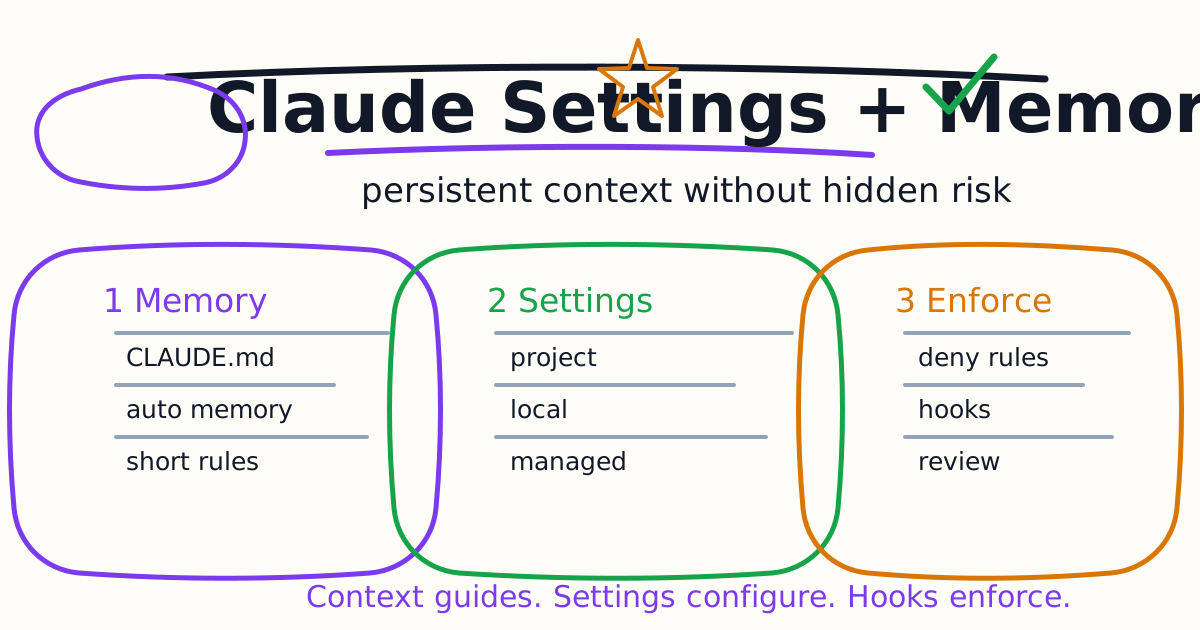
Claude Code has two important configuration layers: memory, which gives Claude persistent context, and settings, which control behavior such as permissions, tools, hooks, plugins, and environment details. When used well, they turn repeated reminders into a stable coding workflow. When used poorly, they create stale context and hidden risk.
This guide explains how to use CLAUDE.md, auto memory, project settings, local settings, permission rules, and hooks without overcomplicating your first Claude Code setup.
Quick Answer
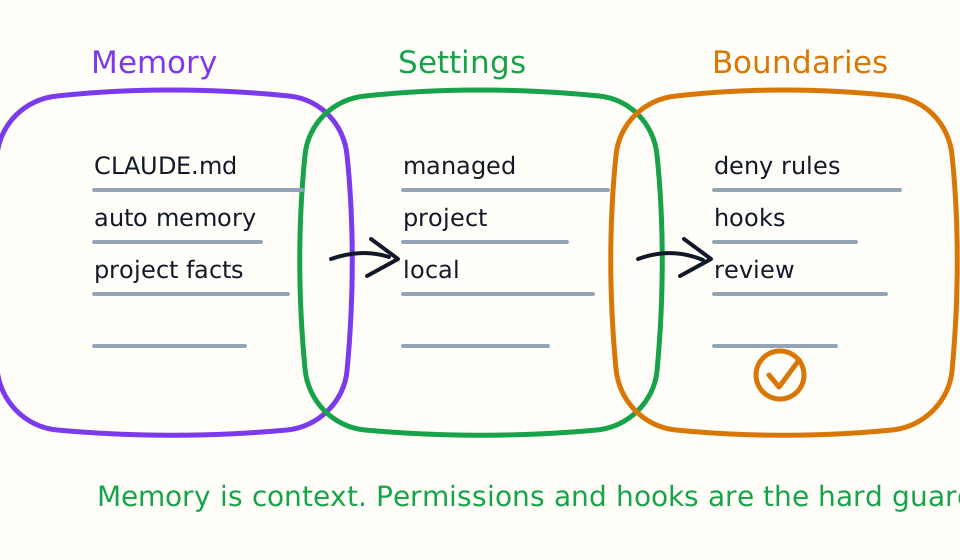
Use CLAUDE.md for concise project instructions that should load into every Claude Code session: package manager, test commands, architecture notes, coding standards, and files to avoid. Use auto memory for learned patterns and preferences Claude discovers over time. Use settings for behavior and permissions, not long prose.
Keep three ideas separate:
CLAUDE.mdguides Claude with context.- Settings configure Claude Code behavior.
- Hooks enforce rules at lifecycle points.
Memory is not a security boundary. If an action must be blocked, use permission rules or a hook.
CLAUDE.md vs Auto Memory
Anthropic's memory docs describe two complementary systems:
CLAUDE.mdfiles: instructions you write.- Auto memory: notes Claude writes based on corrections, patterns, and preferences.
Both load at the start of conversations, but they are not the same.
Use CLAUDE.md for stable rules:
- Package manager.
- Build command.
- Test command.
- Project layout.
- Style conventions.
- Review expectations.
- Generated directories to avoid.
Use auto memory for recurring learnings:
- Debugging insights Claude discovered.
- Project-specific patterns that were corrected during work.
- Preferences that emerged from repeated feedback.
- Commands Claude learned while working in the repository.
Do not store secrets, tokens, private credentials, one-off debugging output, or long documentation dumps in either system.
A Good Starter CLAUDE.md
Start small:
# CLAUDE.md

Use pnpm for this repository.

Common commands:
- pnpm lint
- pnpm test
- pnpm build

Before finishing a code change, run the closest relevant check.
If you cannot run a check, explain why.

Do not edit generated files:
- .next/
- dist/
- coverage/
- node_modules/

Keep patches small and summarize risk before handing off.
This is better than a long policy document because it is specific and easy for Claude to apply. The official memory docs note that concise, well-structured instructions are followed more consistently.
When To Add Memory
Add to CLAUDE.md when:
- Claude makes the same mistake twice.
- A review catches something Claude should know next time.
- You keep typing the same correction.
- A new teammate would need the same project context.
Do not add a rule because it was useful once. Temporary instructions belong in the prompt. Durable repository behavior belongs in CLAUDE.md.
If a rule only applies to one file type or directory, use a more specific instruction surface rather than bloating the root file.
Settings Scopes
Claude Code settings use multiple scopes. The practical model is:
- Managed settings: organization or machine policy, highest priority.
- Command-line arguments: temporary overrides for one session.
- Local project settings: your personal settings for one repo.
- Project settings: shared repository settings committed to git.
- User settings: your defaults across projects.
Use project settings for team behavior that should be shared. Use local settings for personal workflow preferences that should not be committed. Use user settings for tools and preferences you want everywhere. Managed settings are for policy that should not be overridden.
Permissions
Claude Code permissions should match the risk of the task. The official permissions docs describe a precedence model where deny rules win over allow rules. That is the right mental model: if a tool or command is dangerous, block it at the strongest appropriate scope.
Examples of useful restrictions:
- Ask before running broad shell commands.
- Deny edits to generated directories.
- Deny commands that modify production infrastructure.
- Allow common read-only inspection commands.
- Allow narrow test commands that the project uses daily.
Do not rely on a sentence in CLAUDE.md to block destructive actions. Use permissions or hooks when the boundary matters.
Hooks
Hooks run at specific points in Claude Code's lifecycle. Use them when you need automation around tool use or session events.
Good hook use cases:
- Format files after edits.
- Block edits to protected files.
- Notify you when Claude needs input.
- Re-inject context after compaction.
- Audit configuration changes.
- Run a lightweight check before handoff.
Hooks are more mechanical than memory. If you need enforcement, use a hook. If you need context, use memory.
Project vs Local Settings
Use project settings for shared team defaults:
- Recommended tools.
- Shared permission policy.
- Team hooks.
- Plugins or MCP servers the repository expects.
Use local settings for private preferences:
- Your notification behavior.
- Your personal shortcuts.
- Local-only paths.
- Machine-specific tools.
- Temporary experiments.
Do not commit personal credentials or local machine paths into shared project settings.
How This Compares To Codex AGENTS.md
Codex uses AGENTS.md as its durable repository guidance file. Claude Code uses CLAUDE.md and auto memory for persistent context, with settings and hooks for behavior control.
The workflow idea is similar: do not keep repeating package manager, test command, and generated-file rules in every prompt. Put stable rules near the codebase so the agent starts with the right operating manual.
For the Codex version, see the Codex AGENTS.md Guide.
A Safe Team Setup
For a small team, start with:
- A short repository
CLAUDE.md. - Shared project settings only for non-sensitive team defaults.
- Local settings for personal preferences.
- Permission rules that deny risky tools or paths.
- One or two hooks that enforce obvious mechanical rules.
- A review habit that checks diffs and verification output.
Do not start with a giant configuration system. Let real workflow pain tell you what needs to become durable.
Debugging Bad Behavior
If Claude ignores an instruction, check:
- Is the instruction loaded in the current session?
- Is it too vague?
- Is it buried in a long file?
- Does another setting override it?
- Should it be a permission rule or hook instead of memory?
- Is the prompt asking for behavior that conflicts with the memory?
Memory is context. It improves behavior, but it is not absolute enforcement.
Common Mistakes
The first mistake is writing a long CLAUDE.md before using Claude Code on real tasks. Start with the few rules that actually change output.
The second mistake is storing secrets in memory or settings. Keep credentials out of agent-readable files.
The third mistake is using memory as a policy engine. Use permissions and hooks when the rule must be enforced.
The fourth mistake is committing local settings. Personal preferences and machine-specific paths should stay local.
The fifth mistake is never pruning memory. Old project facts become misleading when packages, test commands, or architecture change.
Best Setup Checklist
Before relying on Claude Code heavily, confirm:
CLAUDE.mdis short and specific.- Test and build commands are current.
- Generated directories are listed clearly.
- Local settings are not committed.
- Project settings contain only team-safe defaults.
- Risky tools or commands are denied at the right scope.
- Hooks enforce only rules that need enforcement.
- Secrets are not stored in memory, settings, or prompts.
- The first few tasks produce small, reviewable diffs.
- The final answer always includes verification.
Bottom Line
Claude Code settings and memory are most useful when they reduce repeated instructions without hiding risk. Use CLAUDE.md for concise project context, auto memory for learned patterns, settings for behavior, permissions for boundaries, and hooks for enforcement.
If you are still learning the tool, keep the setup small. A clear prompt, a short CLAUDE.md, and a real verification command will improve results more than a large configuration file.
Related AI Coding Agent Tutorials
- Claude Code Quick Start
- Claude Code CLI Tutorial
- Claude Code VS Code Tutorial
- Claude Code GitHub Actions Guide
- Claude Code MCP Guide
- Claude Code Hooks Guide
- Claude Code Subagents Guide
- Claude Code Skills and Slash Commands Guide
- Claude Code Plugins Guide
- Claude Code Agent Teams Guide
- Codex vs Claude Code
- Codex AGENTS.md Guide
- Codex Permissions and Sandbox Guide
- Codex CLI Tutorial
- Codex Quick Start
Official References
Decision Checklist For Claude Code Settings and Memory Guide
Use this guide as a decision filter before a sales call, trial, or migration plan. For Claude Code Settings and Memory Guide, the practical question is whether the topic connects Claude Code memory, Claude Code settings, CLAUDE.md to a measurable workflow outcome. A good decision should improve delivery speed, quality, cost control, or operational confidence without creating hidden review, security, or migration work.
- Generated changes survive code review with fewer rewrites, fewer broad diffs, and fewer style corrections.
- The assistant understands multi-file context, tests, build failures, private repository rules, and local conventions.
- Administrators can manage seats, data controls, policy settings, and usage visibility without blocking developers.
Pilot Plan
A useful pilot is small enough to finish quickly but realistic enough to expose integration, data, workflow, and pricing issues. Avoid demo-only tests. The trial should use real tasks, real constraints, and a baseline from the current process so the team can decide with evidence instead of impressions.
- Give each candidate the same bug fix, failing-test repair, refactor, and explanation task.
- Track accepted diffs, reviewer comments, rework time, test pass rate, and developer satisfaction.
- Run the trial with senior maintainers and newer engineers because the value pattern is different for each group.
Metrics To Track
Track metrics that connect Claude Code Settings and Memory Guide to outcomes a budget owner and an engineering owner can both understand. A tool can look impressive in a demo and still fail if usage is low, quality is uneven, or the cost model changes under real workload volume.
- Accepted AI-assisted diffs, rejected suggestions, reviewer comments, and post-merge fixes.
- Time to repair failing tests, explain unfamiliar modules, and complete safe refactors.
- Seat utilization, premium request exhaustion, and policy exceptions for sensitive repositories.
Budget And Risk Review
Commercially useful AI tooling decisions should include the subscription or API price, but they should also include support load, review time, observability, privacy controls, switching cost, and the cost of wrong or low-quality output. Treat the first estimate as a working model and update it with production evidence.
- Confirm private code handling, training opt-out, data retention, and enterprise policy controls.
- Watch for over-generation: large patches that look productive but increase review cost.
- Compare cost per accepted change rather than cost per seat alone.
Revisit the assistant after 30 days of real pull requests. A useful coding tool should reduce review latency and onboarding friction without increasing risky generated code.
Editorial note
AI Jupyter writes independent guides for technical readers. Product details, pricing, and feature names can change, so readers should verify commercial terms on the official vendor site before buying.
Reviewed by the AI Jupyter Editorial Team.