
AI Coding Tools
Claude Code VS Code Tutorial
A practical Claude Code VS Code tutorial for installing the extension, using inline diffs, @ mentions, plan review, checkpoints, and IDE workflows.
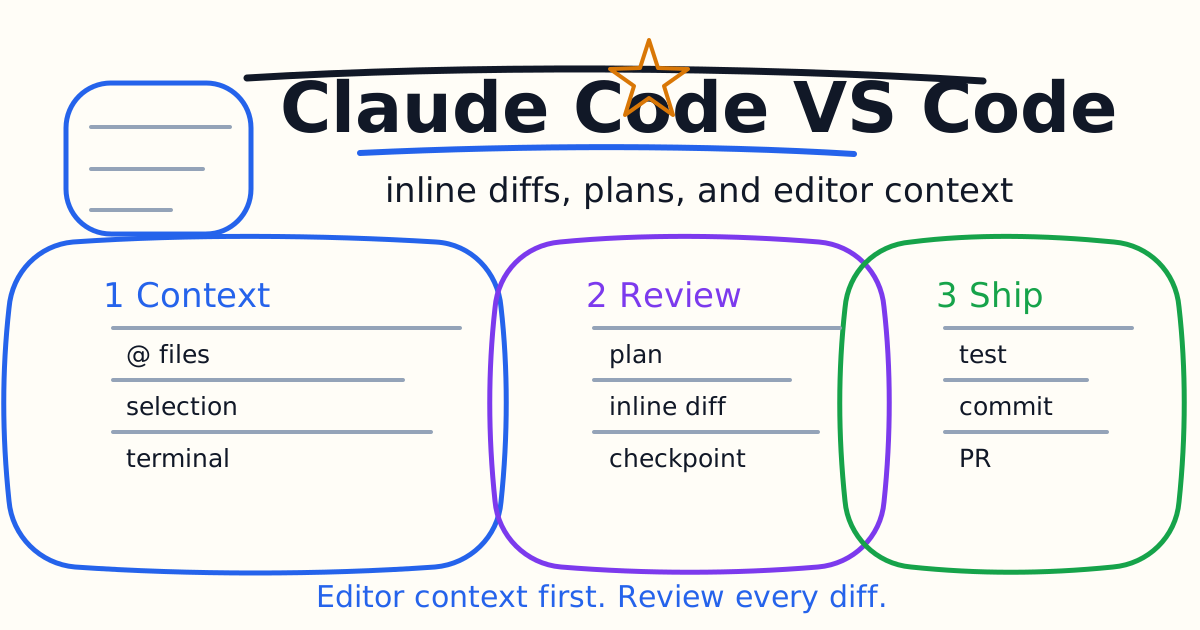
The Claude Code VS Code extension brings Claude Code into your editor with a graphical interface, inline diffs, file and selection context, plan review, checkpoints, and conversation history. It is useful when the task starts from what you are looking at in the IDE rather than from a terminal-only prompt.
This tutorial explains how to install the extension, when to use it instead of the CLI, how to give context with @ mentions and selections, how to review plans and diffs, and how to keep editor-based AI coding safe.
Quick Answer
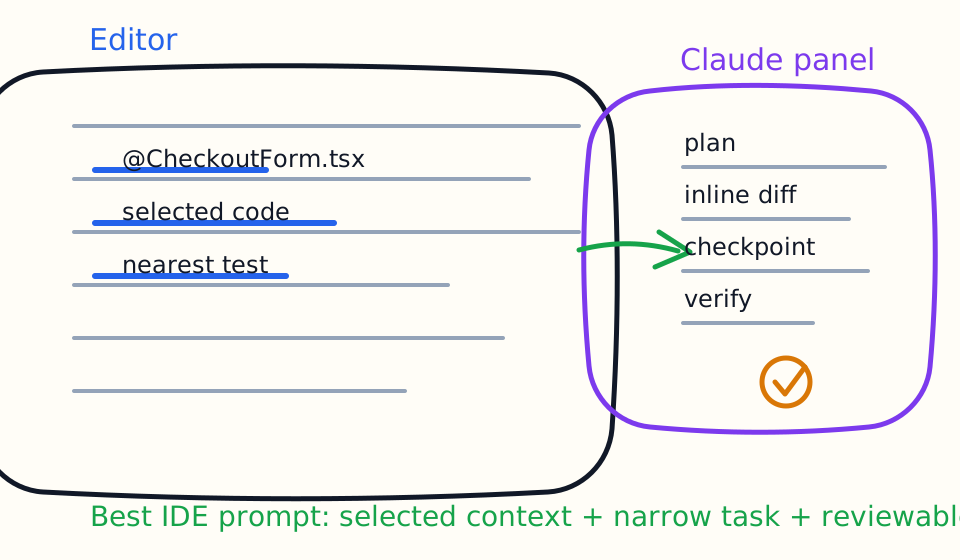
Use Claude Code in VS Code when the task depends on editor context: a selected function, an open file, a visible error, a small component, or a diff you want to inspect visually. Install the extension, open the Claude Code panel, mention relevant files or selections, ask for one narrow task, review the plan, inspect inline diffs, and run verification before accepting the result.
Use the terminal Claude Code CLI Tutorial when the task is command-heavy or starts from logs, scripts, CI output, or repository-wide exploration.
Prerequisites
Anthropic's VS Code docs list two basic prerequisites:
- VS Code 1.98.0 or higher.
- An Anthropic account, such as a paid Claude subscription or Claude Console account.
The extension bundles its own CLI copy for the chat panel. If you also want to run claude in VS Code's integrated terminal, install the standalone CLI separately.
The extension can also install in some VS Code-compatible editors such as Cursor or other forks. If your editor cannot install the extension, use the CLI in the integrated terminal instead.
Install The Extension
In VS Code:
- Open Extensions with
Cmd+Shift+Xon macOS orCtrl+Shift+Xon Windows/Linux. - Search for "Claude Code".
- Install the extension.
- Open a project folder.
- Open the Claude Code panel from the Spark icon.
- Sign in when prompted.
Do not start from a loose file. Claude Code is much more useful when it can see a real repository, package scripts, test structure, and project instructions.
What The Extension Adds
The official VS Code integration emphasizes editor-native behavior:
- A graphical Claude Code panel.
- Inline diff review.
- File and line-range context from selections.
- Plan review before accepting changes.
- Auto-accept options for edits.
- Conversation history.
- Multiple conversations in separate tabs or windows.
- Checkpoints for rewinding changes.
The important point is not that the extension is prettier than the CLI. It changes the workflow because you can point at editor context and review changes visually.
A Good First Prompt
Open the relevant file, select the function or component, then ask:
Explain the selected code and identify the safest small change.

Do not edit yet.
Focus on inputs, side effects, and the closest test file.
Then ask for one edit:
Fix the selected loading-state bug.

Keep the patch limited to this component and the closest test.
Do not change colors, copy, or public props.
Run the closest check or tell me why it cannot run.
This style works because the editor supplies context and the prompt supplies boundaries.
Use @ Mentions Carefully
Use @ mentions when a task depends on specific files:
Use @CheckoutForm.tsx and @pricing.ts. Find why annual pricing is displayed incorrectly and patch only the smallest related code.
Mention files instead of pasting huge chunks of code. Use selections when the issue is local. Use the CLI or a separate exploration task when the problem is repository-wide.
Bad context is noisy context. The goal is not to attach everything. The goal is to attach the few files Claude needs to make a correct small change.
Review Plans Before Edits
For anything more complex than a tiny copy or test change, ask for a plan first:
Plan the smallest fix for this bug. Do not edit yet. List the files you expect to touch, the risk, and the verification command.
Review the plan. If it includes unrelated files, broad refactors, or missing verification, correct the plan before allowing edits.
This habit keeps the extension from turning a visible problem into a broad rewrite.
Inline Diffs And Checkpoints
Inline diffs are one of the main reasons to use the IDE extension. Read them like a pull request:
- Did the changed files match the plan?
- Did the patch preserve existing style?
- Did it add unrelated abstractions?
- Did it change public behavior unexpectedly?
- Did it include or update tests?
Checkpoints are useful when you want to try an ambitious change but keep an escape path. Still, do not treat checkpoints as a substitute for small diffs. Smaller tasks are easier to verify and easier to keep.
VS Code Extension vs CLI
Use the VS Code extension when:
- You need inline diff review.
- The task depends on selected code.
- You want to inspect or edit Claude's plan.
- You want visual review inside the IDE.
- You are already working in a VS Code-compatible editor.
Use the CLI when:
- The task starts from logs or shell commands.
- You want to pipe input.
- You need a terminal-first workflow.
- You are scripting or automating.
- Your editor cannot install the extension.
Most teams will use both. The extension is good for editor-attached work; the CLI is good for terminal-first work.
Work With Git
Claude Code can help with commits and pull requests, but you should keep review habits intact.
Before asking it to commit:
- Inspect the diff.
- Run the relevant check.
- Confirm no unrelated files changed.
- Confirm secrets or local paths were not added.
- Write a clear summary of the behavior change.
For GitHub automation, see the Claude Code GitHub Actions Guide.
Compare With Codex IDE
If you are choosing between editor agents, compare this page with the Codex IDE Extension Tutorial.
Run the same tasks in both:
- Explain one selected component.
- Fix one UI bug.
- Add one test.
- Review one local diff.
- Update one documentation page.
Measure review friction, verification quality, and how often you need to correct the agent's scope.
Common Mistakes
The first mistake is attaching too much context. More files can make the task slower and less focused.
The second mistake is skipping plan review. If a plan is too broad, the diff will probably be too broad too.
The third mistake is accepting inline diffs because they look plausible. Run the closest check.
The fourth mistake is mixing unrelated requests in one conversation. Keep each conversation tied to one concrete outcome.
The fifth mistake is using the extension as a replacement for Git review. It is a faster editing surface, not an approval system.
Bottom Line
Claude Code in VS Code is best when the work starts in the editor. Select the relevant code, mention the few files that matter, ask for a plan, inspect inline diffs, use checkpoints when helpful, and require verification before keeping the change.
If the work is terminal-heavy, switch to the CLI. If the work belongs in GitHub issues or PR comments, use GitHub Actions. The right surface is the one that gives Claude the right context and gives you the easiest review path.
Related AI Coding Agent Tutorials
- Claude Code Quick Start
- Claude Code CLI Tutorial
- Claude Code Settings and Memory Guide
- Claude Code GitHub Actions Guide
- Claude Code MCP Guide
- Claude Code Hooks Guide
- Claude Code Subagents Guide
- Claude Code Skills and Slash Commands Guide
- Claude Code Plugins Guide
- Claude Code Agent Teams Guide
- Codex IDE Extension Tutorial
- Codex vs Claude Code
- Codex Prompts for Developers
Official References
Decision Checklist For Claude Code VS Code Tutorial
Use this guide as a decision filter before a sales call, trial, or migration plan. For Claude Code VS Code Tutorial, the practical question is whether the topic connects Claude Code VS Code, Claude Code extension, AI coding IDE to a measurable workflow outcome. A good decision should improve delivery speed, quality, cost control, or operational confidence without creating hidden review, security, or migration work.
- Generated changes survive code review with fewer rewrites, fewer broad diffs, and fewer style corrections.
- The assistant understands multi-file context, tests, build failures, private repository rules, and local conventions.
- Administrators can manage seats, data controls, policy settings, and usage visibility without blocking developers.
Pilot Plan
A useful pilot is small enough to finish quickly but realistic enough to expose integration, data, workflow, and pricing issues. Avoid demo-only tests. The trial should use real tasks, real constraints, and a baseline from the current process so the team can decide with evidence instead of impressions.
- Give each candidate the same bug fix, failing-test repair, refactor, and explanation task.
- Track accepted diffs, reviewer comments, rework time, test pass rate, and developer satisfaction.
- Run the trial with senior maintainers and newer engineers because the value pattern is different for each group.
Metrics To Track
Track metrics that connect Claude Code VS Code Tutorial to outcomes a budget owner and an engineering owner can both understand. A tool can look impressive in a demo and still fail if usage is low, quality is uneven, or the cost model changes under real workload volume.
- Accepted AI-assisted diffs, rejected suggestions, reviewer comments, and post-merge fixes.
- Time to repair failing tests, explain unfamiliar modules, and complete safe refactors.
- Seat utilization, premium request exhaustion, and policy exceptions for sensitive repositories.
Budget And Risk Review
Commercially useful AI tooling decisions should include the subscription or API price, but they should also include support load, review time, observability, privacy controls, switching cost, and the cost of wrong or low-quality output. Treat the first estimate as a working model and update it with production evidence.
- Confirm private code handling, training opt-out, data retention, and enterprise policy controls.
- Watch for over-generation: large patches that look productive but increase review cost.
- Compare cost per accepted change rather than cost per seat alone.
Revisit the assistant after 30 days of real pull requests. A useful coding tool should reduce review latency and onboarding friction without increasing risky generated code.
Editorial note
AI Jupyter writes independent guides for technical readers. Product details, pricing, and feature names can change, so readers should verify commercial terms on the official vendor site before buying.
Reviewed by the AI Jupyter Editorial Team.