
AI Coding Tools
Claude Code CLI Tutorial
Learn Claude Code CLI setup, terminal sessions, one-shot prompts, resume workflow, repository verification, and safe review habits.
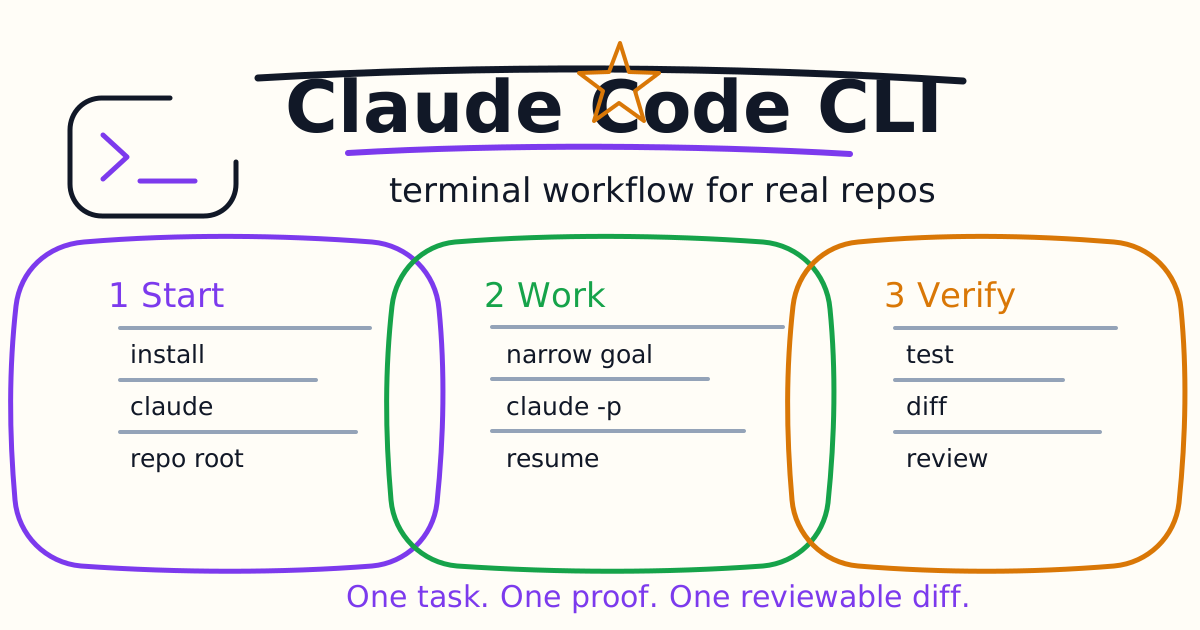
Claude Code CLI is the terminal-first way to use Anthropic's coding agent inside a real repository. You start a session with claude, give it a task in plain language, let it read files and run commands when allowed, then review the final diff before you keep the work.
This tutorial focuses on the practical CLI workflow: install, start a session, use one-shot prompts, pipe input, resume work, manage context, and ask for verification without letting the agent drift into broad rewrites.
Quick Answer
Install Claude Code from the official Anthropic docs, open a terminal in your repository, and run:
claude
For a first useful task, ask Claude Code to inspect before editing:
Explain this repository structure, identify the main test command, and recommend one small safe task. Do not edit files yet.
Once you trust the context, give one narrow editing task with a done condition:
Fix the failing validation test shown below. Keep the patch minimal, run the closest test, and summarize the changed files.
Install Claude Code
Anthropic's current overview recommends native installation paths for the CLI. The documented install commands include a shell installer for macOS, Linux, and WSL, a PowerShell installer for Windows, Homebrew, and WinGet.
Common paths:
curl -fsSL https://claude.ai/install.sh | bash
irm https://claude.ai/install.ps1 | iex
brew install --cask claude-code
winget install Anthropic.ClaudeCode
After installation, check:
claude --version
claude --help
On native Windows, Anthropic recommends Git for Windows so Claude Code can use Bash. If Git for Windows is not installed, Claude Code can use PowerShell as the shell tool. WSL setups do not need Git for Windows.
Start An Interactive Session
The basic command starts a session:
claude
You can also start with an initial prompt:
claude "explain this project and list the safest first tests to run"
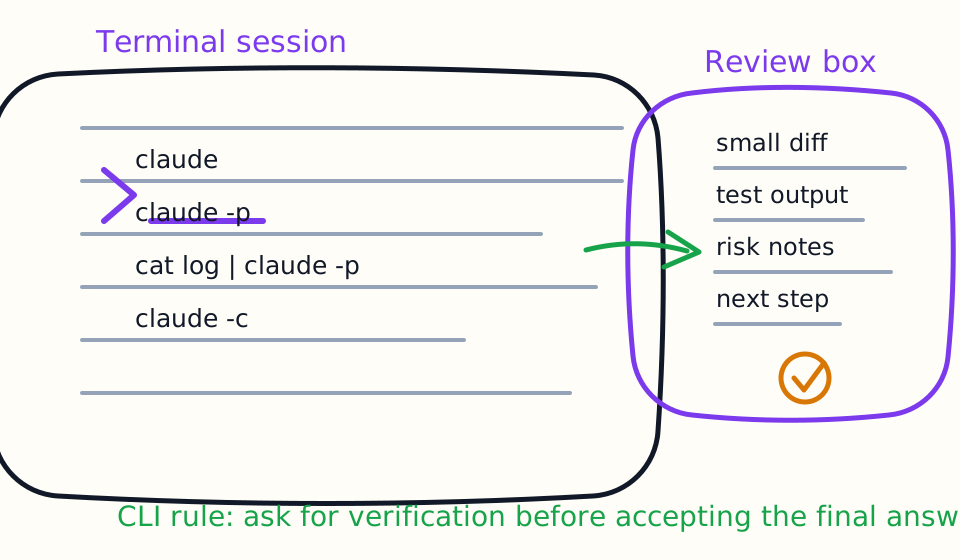
Use interactive mode when the task needs steering. That includes debugging, refactoring, editing tests, reviewing a diff, or working through a multi-step change. The terminal session gives you a transcript of what Claude read, proposed, and ran.
Use One-Shot Prompt Mode
The CLI reference documents claude -p for query-style usage that exits after answering. This is useful when you want output but not an ongoing interactive session.
Examples:
claude -p "summarize the package scripts and identify the main build command"
cat error.log | claude -p "explain the likely root cause and list the first three files to inspect"
Use one-shot mode for:
- Explaining logs.
- Summarizing a file.
- Drafting release notes.
- Inspecting command output.
- Getting a short plan before opening a longer session.
Use interactive mode for edits. One-shot output is easier to script, but a real code change usually benefits from review, follow-up, and verification.
Resume Work
Claude Code supports continuing the most recent conversation in the current directory and resuming a session by ID or name. That matters when you pause after a failing test, a partial refactor, or a review comment.
Examples:
claude -c
claude -r "auth-refactor" "Finish the test repair and summarize remaining risk"
Before resuming, inspect your current git diff. A resumed session is helpful only if you know what changed since the last turn.
Add More Directories Carefully
The CLI supports adding additional working directories. Use this only when the task truly spans more than one directory, such as a monorepo where shared libraries live outside the app folder.
Example:
claude --add-dir ../shared ../packages/ui
More access is not always better. Extra directories increase context and permission surface. Start with the repository or package that owns the task, then add directories only when Claude Code explicitly needs them.
A Good First Debugging Prompt
Use this structure:
Goal: Fix one failing test.

Context: Start from the test output below. Inspect only the files directly related to this failure first.

Constraints: Keep public APIs unchanged. Do not add dependencies. Do not rewrite the module.

Done when: The related test passes, and you summarize the diff, command output, and remaining risk.
This works because the goal is measurable. Claude Code can identify the failure, edit a small path, run the test, and show you the result.
A Good First Review Prompt
Claude Code can also review code from the terminal:
Review my uncommitted changes for serious issues.

Focus on:
1. correctness bugs
2. security or privacy risk
3. missing tests
4. behavior outside the stated change

Return findings first, ordered by severity. Do not comment on style unless it hides a bug.
Pair this with the AI Code Review Tools Evaluation Guide if you are comparing Claude Code, Codex, and other review tools.
What To Put In CLAUDE.md
Claude Code uses CLAUDE.md files for persistent project instructions. A useful starter file is short:
# CLAUDE.md

Use pnpm.

Before finishing a code change, run:
- pnpm lint
- pnpm test

Do not edit generated files in dist, coverage, .next, or node_modules.
Keep changes small and summarize verification.
Do not turn CLAUDE.md into a giant wiki. The official memory docs recommend concise, specific instructions because they are loaded as context rather than hard enforcement.
For a deeper setup, see the Claude Code Settings and Memory Guide.
CLI Mistakes To Avoid
The first mistake is starting from the wrong directory. Run Claude Code from the repository root or the package folder that owns the task.
The second mistake is asking for a broad rewrite. "Improve the codebase" is not a task. "Fix this failing test without changing public API names" is a task.
The third mistake is skipping verification. Every code edit should end with a relevant test, type check, lint, build, or a clear explanation of why verification could not run.
The fourth mistake is putting secrets into prompts, memory, settings, logs, or pasted command output. Treat terminal transcripts as sensitive when they include credentials or private paths.
The fifth mistake is using one-shot mode for a task that needs review. Use claude -p for answers and summaries; use interactive mode for code changes.
Best First Week Workflow
Use Claude Code CLI for five types of work:
- Repository explanation.
- Failing test triage.
- Small bug fixes.
- Diff review.
- Documentation updates based on codebase facts.
Keep every task narrow. Save repeated project rules in CLAUDE.md. Use settings and permission rules only after you understand what the agent actually needs in your repositories.
Claude Code CLI vs Codex CLI
Claude Code CLI and Codex CLI both support terminal-first coding agent workflows. The best comparison is not brand preference. Run the same repository tasks through both tools: explain one module, fix one failing test, review one diff, update one documentation page, and add one small validation rule.
If you want the OpenAI-centered workflow, start with the Codex CLI Tutorial. If you want the Anthropic-centered terminal workflow, start here and then read Claude Code Quick Start.
Related AI Coding Agent Tutorials
- Claude Code Quick Start
- Claude Code Settings and Memory Guide
- Claude Code VS Code Tutorial
- Claude Code GitHub Actions Guide
- Claude Code MCP Guide
- Claude Code Hooks Guide
- Claude Code Subagents Guide
- Claude Code Skills and Slash Commands Guide
- Claude Code Plugins Guide
- Claude Code Agent Teams Guide
- Codex vs Claude Code
- Codex CLI Tutorial
- Codex IDE Extension Tutorial
- Codex Prompts for Developers
- Codex Code Review Tutorial
Official References
Decision Checklist For Claude Code CLI Tutorial
Use this guide as a decision filter before a sales call, trial, or migration plan. For Claude Code CLI Tutorial, the practical question is whether the topic connects Claude Code CLI, Claude Code tutorial, AI coding agent to a measurable workflow outcome. A good decision should improve delivery speed, quality, cost control, or operational confidence without creating hidden review, security, or migration work.
- Generated changes survive code review with fewer rewrites, fewer broad diffs, and fewer style corrections.
- The assistant understands multi-file context, tests, build failures, private repository rules, and local conventions.
- Administrators can manage seats, data controls, policy settings, and usage visibility without blocking developers.
Pilot Plan
A useful pilot is small enough to finish quickly but realistic enough to expose integration, data, workflow, and pricing issues. Avoid demo-only tests. The trial should use real tasks, real constraints, and a baseline from the current process so the team can decide with evidence instead of impressions.
- Give each candidate the same bug fix, failing-test repair, refactor, and explanation task.
- Track accepted diffs, reviewer comments, rework time, test pass rate, and developer satisfaction.
- Run the trial with senior maintainers and newer engineers because the value pattern is different for each group.
Metrics To Track
Track metrics that connect Claude Code CLI Tutorial to outcomes a budget owner and an engineering owner can both understand. A tool can look impressive in a demo and still fail if usage is low, quality is uneven, or the cost model changes under real workload volume.
- Accepted AI-assisted diffs, rejected suggestions, reviewer comments, and post-merge fixes.
- Time to repair failing tests, explain unfamiliar modules, and complete safe refactors.
- Seat utilization, premium request exhaustion, and policy exceptions for sensitive repositories.
Budget And Risk Review
Commercially useful AI tooling decisions should include the subscription or API price, but they should also include support load, review time, observability, privacy controls, switching cost, and the cost of wrong or low-quality output. Treat the first estimate as a working model and update it with production evidence.
- Confirm private code handling, training opt-out, data retention, and enterprise policy controls.
- Watch for over-generation: large patches that look productive but increase review cost.
- Compare cost per accepted change rather than cost per seat alone.
Revisit the assistant after 30 days of real pull requests. A useful coding tool should reduce review latency and onboarding friction without increasing risky generated code.
Editorial note
AI Jupyter writes independent guides for technical readers. Product details, pricing, and feature names can change, so readers should verify commercial terms on the official vendor site before buying.
Reviewed by the AI Jupyter Editorial Team.