
AI Coding Tools
Codex MCP Guide
A practical Codex MCP guide for connecting documentation, browser, design, monitoring, and developer tools to Codex safely.
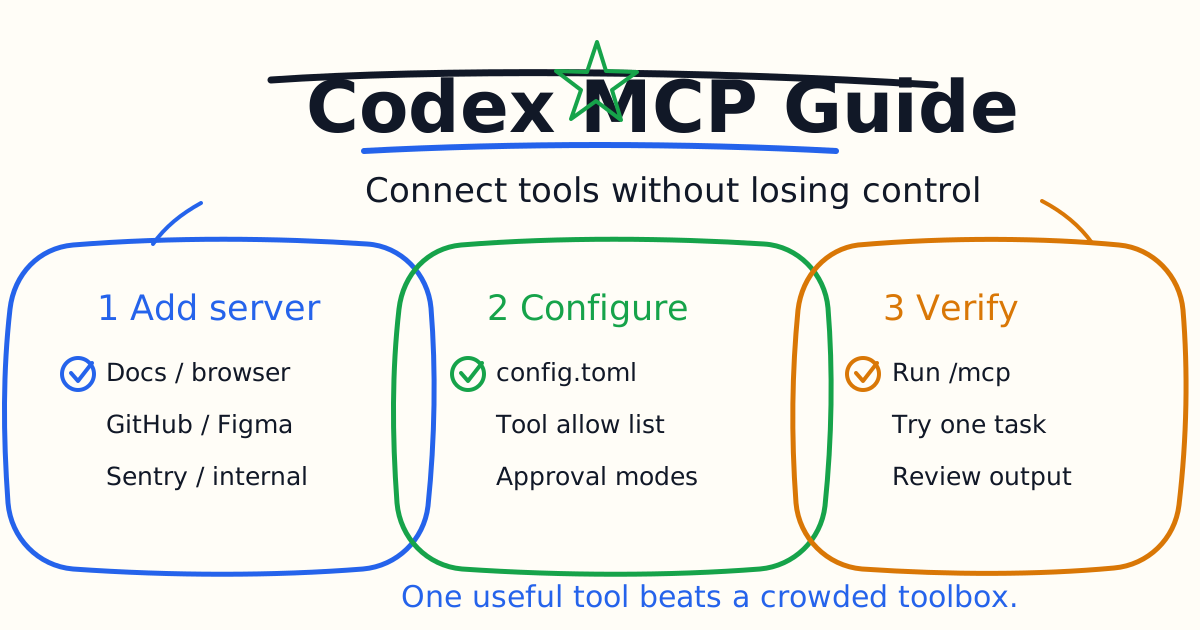
Model Context Protocol, usually shortened to MCP, is how Codex can connect to extra tools and context beyond the files in your repository. A good MCP setup can let Codex search current developer docs, inspect a browser, read design context, query monitoring tools, or work with repository systems in a more structured way.
This Codex MCP guide is for developers who want the practical version: what MCP is useful for, when to add a server, how to configure one, how to keep permissions safe, and how to avoid turning Codex into a noisy tool collector.
Quick Answer
Use MCP when Codex needs a live tool or trusted external context to complete a coding task. Good first MCP servers are documentation search, browser inspection, GitHub pull request context, Figma design context, Sentry logs, or a team-owned internal tool.
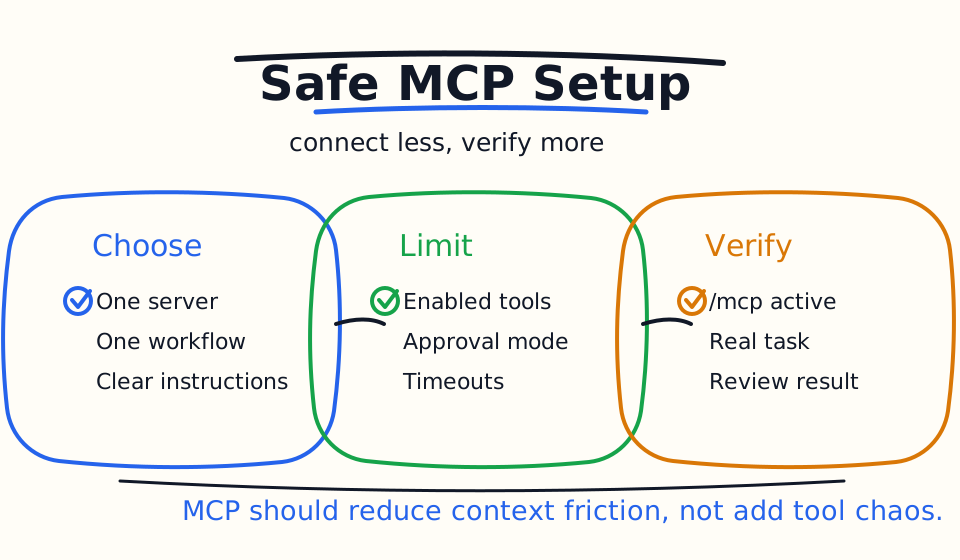
Do not add every MCP server you can find. Add one server for one recurring workflow, verify that Codex can use it, limit the tools it exposes, and document when the server should be used. MCP is most valuable when it makes a real task easier to verify.
Codex supports MCP in the CLI and IDE extension. You can manage servers with codex mcp commands or configure them in config.toml.
What MCP Adds To Codex
Without MCP, Codex can still inspect your repository, edit files, run commands, and reason from the context you provide. MCP adds a structured bridge to tools outside the repo.
That matters when the task depends on current or private context:
- Current framework documentation.
- Browser state for a local app.
- Pull request metadata and review comments.
- Design files and product specs.
- Error monitoring and logs.
- Internal APIs or team tools.
The key word is structured. A good MCP server gives Codex named tools with clear inputs, outputs, and instructions. That is better than pasting a giant pile of screenshots, logs, and docs into every prompt.
When You Should Add An MCP Server
Add an MCP server when three things are true:
- The same external context is needed repeatedly.
- The context is hard or slow to provide manually.
- Tool access can be bounded safely.
For example, a documentation MCP server is useful because developers often need current docs. A browser MCP server is useful when UI verification matters. A Sentry MCP server can be useful when debugging production errors, but it needs stricter access controls because logs may contain sensitive information.
Do not add MCP for one-off curiosity. If a single paste or screenshot solves the task, keep the workflow simple.
Configure MCP With The CLI
The official Codex documentation describes codex mcp as the CLI path for adding and managing servers.
For example, a documentation server might be added like this:
codex mcp add context7 -- npx -y @upstash/context7-mcp
To see available MCP commands, run:
codex mcp --help
Inside the Codex terminal UI, use:
/mcp
That lets you see active MCP servers during a session.
Configure MCP In config.toml
Codex stores MCP settings in config.toml. The default location is usually ~/.codex/config.toml, and trusted projects can also use project-scoped .codex/config.toml.
A simple STDIO server example looks like this:
[mcp_servers.context7]
command = "npx"
args = ["-y", "@upstash/context7-mcp"]
env_vars = ["LOCAL_TOKEN"]
A streamable HTTP server can use a URL and token environment variable:
[mcp_servers.figma]
url = "https://mcp.figma.com/mcp"
bearer_token_env_var = "FIGMA_OAUTH_TOKEN"
Use environment variables for sensitive values. Do not hard-code tokens into config.toml if the file may be committed, shared, backed up, or copied into support tickets.
Limit Tools Before Scaling
Many MCP servers expose more than one tool. Codex can use tool allow lists and deny lists to narrow what a server exposes.
Example:
[mcp_servers.browser]
url = "http://localhost:3000/mcp"
enabled_tools = ["open", "screenshot"]
default_tools_approval_mode = "prompt"
startup_timeout_sec = 20
tool_timeout_sec = 45
Start narrow. If Codex only needs screenshots and page inspection, do not expose destructive browser or account actions. If it only needs documentation search, do not expose write tools.
Tool limits are not bureaucracy. They make Codex faster and safer because the agent has fewer irrelevant actions to consider.
Approval Modes And Safety
Codex can configure default approval behavior for MCP server tools and per-tool overrides. The practical choices are:
| Mode | Use It For |
|---|---|
auto | Low-risk read-only tools that are safe to run frequently |
prompt | Tools that may reveal private context or affect external systems |
approve | Tools you have reviewed and intentionally allow in that setup |
Treat tools that send data, create issues, post comments, change files outside the repo, query sensitive logs, or operate on private accounts as higher risk. Even if a server is useful, not every tool from that server should be automatic.
If you are not sure, use prompt first. After a few real sessions, you can decide which tools deserve a smoother path.
Server Instructions Matter
The Codex MCP documentation notes that Codex reads server instructions returned during initialization. If you maintain an MCP server, use the instructions field for cross-tool guidance: rate limits, safe usage, workflow order, and constraints that apply to the whole server.
Good server instructions are short and operational:
Use search before fetch. Do not request private project data unless the user explicitly names the project. Prefer concise summaries with source links.
Bad server instructions are vague:
Be helpful and use this tool well.
The first one changes behavior. The second one adds noise.
A Good First MCP Workflow
Start with documentation search.
- Add one documentation MCP server.
- Ask Codex to verify the server is active with
/mcp. - Ask a narrow coding question that needs current docs.
- Require Codex to cite or summarize the relevant source.
- Check whether the final code change is smaller or better verified than without MCP.
Try this prompt:
Use the configured documentation MCP server to verify the current API for this framework feature. Then patch the smallest related code path and run the closest test.
If that workflow saves time, keep it. If Codex spends more time choosing tools than solving the task, narrow the server or remove it.
MCP For Browser And UI Work
Browser MCP can be powerful for frontend work. It can let Codex open a local page, inspect DOM state, capture screenshots, and verify layout behavior.
Use browser access for tasks like:
- Confirming that a route renders.
- Checking a mobile breakpoint.
- Verifying that a modal opens.
- Detecting horizontal overflow.
- Comparing a screenshot with a design requirement.
Keep browser workflows read-heavy at first. Avoid letting an agent submit forms, upload files, change account settings, or send messages unless the task explicitly requires that side effect and the destination is trusted.
MCP For GitHub And Review Work
GitHub MCP can be useful when Codex needs issue, pull request, or review context beyond raw git commands. It is especially useful for triage, issue summaries, PR comments, and repository metadata.
Start with read-only workflows:
Use GitHub context to summarize the open PR feedback, then propose a minimal local fix plan. Do not edit files until the plan is clear.
Only move to write actions after you understand exactly what the server can do and which actions require approval.
Common Mistakes
The first mistake is adding too many servers. A crowded tool list makes the agent slower and harder to predict.
The second mistake is exposing broad write tools too early. Start with read-only context, then add write actions only when a repeated workflow needs them.
The third mistake is putting secrets directly into configuration. Use environment variables and keep sensitive values out of committed files.
The fourth mistake is not documenting when a tool should be used. If a server has clear instructions, Codex is less likely to call it at the wrong time.
The fifth mistake is measuring MCP by novelty. Measure it by accepted diffs, better verification, faster debugging, and fewer manual context-pasting steps.
Bottom Line
MCP is best when it gives Codex one trusted capability that your workflow needs repeatedly. Add one server, narrow its tools, set conservative approval behavior, and verify that it improves real tasks.
The right MCP setup should feel quiet. Codex should use the tool when it helps, ignore it when it does not, and leave you with a smaller, better-verified diff.
Related Codex Tutorials
- Codex Quick Start
- Codex CLI Tutorial
- Codex AGENTS.md Guide
- Codex Code Review Tutorial
- Codex Cloud Tasks Guide
- Codex Exec Automation Guide
- Codex GitHub Action Tutorial
- Codex Permissions and Sandbox Guide
- Codex Image Input Guide
- Codex vs Claude Code
- Claude Code MCP Guide
- Claude Code Hooks Guide
Official References
Decision Checklist For Codex MCP Guide
Use this guide as a decision filter before a sales call, trial, or migration plan. For Codex MCP Guide, the practical question is whether the topic connects Codex MCP, Model Context Protocol, Codex tutorial to a measurable workflow outcome. A good decision should improve delivery speed, quality, cost control, or operational confidence without creating hidden review, security, or migration work.
- Generated changes survive code review with fewer rewrites, fewer broad diffs, and fewer style corrections.
- The assistant understands multi-file context, tests, build failures, private repository rules, and local conventions.
- Administrators can manage seats, data controls, policy settings, and usage visibility without blocking developers.
Pilot Plan
A useful pilot is small enough to finish quickly but realistic enough to expose integration, data, workflow, and pricing issues. Avoid demo-only tests. The trial should use real tasks, real constraints, and a baseline from the current process so the team can decide with evidence instead of impressions.
- Give each candidate the same bug fix, failing-test repair, refactor, and explanation task.
- Track accepted diffs, reviewer comments, rework time, test pass rate, and developer satisfaction.
- Run the trial with senior maintainers and newer engineers because the value pattern is different for each group.
Metrics To Track
Track metrics that connect Codex MCP Guide to outcomes a budget owner and an engineering owner can both understand. A tool can look impressive in a demo and still fail if usage is low, quality is uneven, or the cost model changes under real workload volume.
- Accepted AI-assisted diffs, rejected suggestions, reviewer comments, and post-merge fixes.
- Time to repair failing tests, explain unfamiliar modules, and complete safe refactors.
- Seat utilization, premium request exhaustion, and policy exceptions for sensitive repositories.
Budget And Risk Review
Commercially useful AI tooling decisions should include the subscription or API price, but they should also include support load, review time, observability, privacy controls, switching cost, and the cost of wrong or low-quality output. Treat the first estimate as a working model and update it with production evidence.
- Confirm private code handling, training opt-out, data retention, and enterprise policy controls.
- Watch for over-generation: large patches that look productive but increase review cost.
- Compare cost per accepted change rather than cost per seat alone.
Revisit the assistant after 30 days of real pull requests. A useful coding tool should reduce review latency and onboarding friction without increasing risky generated code.
Editorial note
AI Jupyter writes independent guides for technical readers. Product details, pricing, and feature names can change, so readers should verify commercial terms on the official vendor site before buying.
Reviewed by the AI Jupyter Editorial Team.